
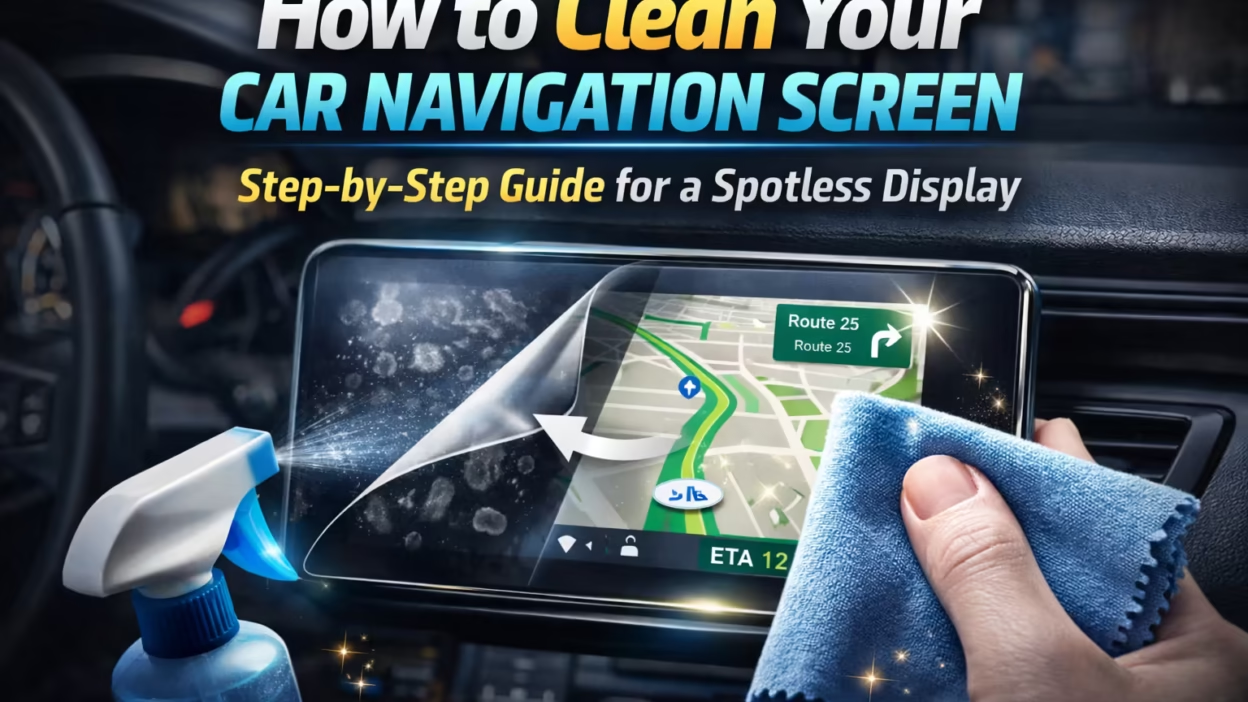
Why Cleaning Your Car Navigation Screen Matters
Your car navigation screen is the command center of your driving experience. It provides GPS directions and music controls. You can adjust climate settings and view the backup camera. It’s one of the most frequently used—and frequently touched—components in modern vehicles. Unfortunately, it’s also one of the most neglected when it comes to proper cleaning.
Over time, fingerprints, dust, skin oils, food residue, and airborne pollutants accumulate on the surface. This buildup doesn’t just make the screen look dirty. It reduces visibility. It also increases glare in bright sunlight and can interfere with touch sensitivity. In extreme cases, improper cleaning methods can permanently damage the screen’s anti-glare or oleophobic coating, leading to scratches, streaks, or faded display clarity.

Many car owners unknowingly clean their navigation screens the wrong way. Using paper towels, household glass cleaners, or spraying liquid directly onto the display can allow moisture to seep into the edges, potentially damaging internal electronics. These mistakes are common—and costly.
This guide explains how to clean a car navigation screen safely and correctly, using methods recommended for modern infotainment displays. You’ll learn which tools are safe, which products to avoid, and how to maintain a crystal-clear screen without risking damage.
Pro Tip:
After proper cleaning, using a car navigation screen protector can dramatically reduce fingerprints, glare, and the need for frequent wiping. It also adds a protective layer against micro-scratches caused by daily use. If you’re considering this option, our detailed guide on the best car navigation screen protector provides insights. It explains how to choose the right one for long-term protection.
2. Understanding Your Car Navigation Screen
Before you clean your car navigation screen, it’s important to understand what type of display you’re dealing with and how it’s constructed. Modern infotainment systems are not simple glass panels. They are layered electronic displays designed for touch interaction, glare reduction, and durability inside a high-heat automotive environment.
Most car navigation screens use LCD or OLED technology, combined with capacitive touch sensors that respond to electrical signals from your fingers. On top of the display sits a thin protective layer, often treated with anti-glare and oleophobic (oil-resistant) coatings. These coatings improve visibility in sunlight and reduce fingerprint buildup—but they are also delicate and easily damaged by harsh cleaners or abrasive materials.
2.1 Common Types of Car Navigation Screens
- LCD (Liquid Crystal Display): Widely used in mid-range vehicles; durable but prone to visible smudges and glare if not cleaned properly.
- OLED Displays: Found in newer and premium models; offer higher contrast and clarity but require extra care due to softer surface layers.
- Capacitive Touchscreens: Similar to smartphones; highly sensitive to pressure and moisture.
2.2 Why Proper Cleaning Matters
Improper cleaning can strip protective coatings, cause micro-scratches, or allow moisture to seep into the edges of the display. Over time, this may lead to reduced touch accuracy, permanent haze, or expensive screen replacement.
Pro Insight:
If your screen feels “sticky” or looks cloudy even after wiping, it’s often a sign. This usually indicates that the oleophobic coating has been partially damaged. Incorrect cleaning products, not dirt alone, are usually the cause.
3. Tools & Materials You’ll Need to Clean a Car Navigation Screen
Using the right tools is just as important as using the right technique. Car navigation screens are sensitive electronic displays. The wrong materials can scratch the surface. They might remove protective coatings or push moisture into the screen’s edges. Before you begin, make sure you have screen-safe cleaning tools designed for electronics, not household substitutes.

3.1 Safe Cleaning Tools (Recommended)
- Microfiber cloth (lint-free): This is the safest and most effective option for cleaning a car navigation screen. Microfiber traps dust and oils without scratching the surface. Always use a clean, dry cloth.
- Distilled water: Free from minerals that can leave streaks or residue. Tap water may contain impurities that affect screen coatings.
- Electronics-safe screen cleaner (optional): Choose a solution labeled safe for LCD, OLED, or touchscreens. Use sparingly.
- Compressed air or air blower: Ideal for removing loose dust around screen edges and vents without physical contact.
- Soft detailing brush: Useful for cleaning bezels, seams, and hard-to-reach corners around the display.
3.2 What NOT to Use (Avoid These Completely)
- Paper towels, napkins, or tissues (they cause micro-scratches)
- Household glass cleaners or window sprays (often contain ammonia or alcohol)
- Rough cloths, sponges, or scrub pads
- Excessive liquid or soaking wipes
3.3 Quick Prep Checklist (Before You Start)
- Turn off the car and navigation display
- Park in a shaded, cool area
- Remove rings or accessories that could scratch the screen
- Use a clean microfiber cloth only
Pro Tip:
Always keep a dedicated microfiber cloth in your car for screens only. Using the same cloth for dashboards or glass can transfer abrasive particles that damage the display.
4. Step-by-Step Guide: How to Clean a Car Navigation Screen Safely
This step-by-step process is designed specifically for modern car navigation and infotainment screens, including LCD, OLED, and capacitive touch displays. Following these steps in order will help you clean the screen thoroughly without damaging coatings or internal electronics.

4.1 Turn Off the Screen Before Cleaning
Always switch off your car and navigation display before you start. A powered-off screen makes fingerprints, dust, and smudges easier to see and prevents accidental inputs while wiping. More importantly, it reduces the risk of electrical damage if moisture is introduced accidentally.
Pro Tip: Let the screen cool down for a few minutes if the car was parked in the sun. Cleaning a hot screen can cause streaking due to rapid evaporation.
4.2 Remove Loose Dust and Debris First
Before using any moisture, gently remove loose dust particles to avoid dragging abrasive debris across the surface.
- Use a dry microfiber cloth with very light pressure
- Or blow dust away using compressed air or a manual air blower
- Focus on edges, corners, and seams where dust accumulates
Skipping this step increases the chance of micro-scratches during wiping.
4.3 Lightly Dampen the Cloth (Never the Screen)
If dry wiping doesn’t remove fingerprints or oily residue, use a microfiber cloth. Slightly dampen the cloth with distilled water or an electronics-safe screen cleaner.
⚠️ Never spray liquid directly onto the navigation screen. Excess moisture can seep into the edges and damage internal components.
Educational institutions recommend specific device-care guidance. They consistently advise applying liquid only to the cloth—not the screen itself. This approach protects sensitive electronics and surface coatings. These recommendations are outlined in safe electronics cleaning guidelines from an educational institution.
4.4 Wipe Gently Using the Correct Motion
Use light, even strokes with minimal pressure:
- Wipe top to bottom or side to side
- Avoid circular scrubbing, which can spread oils and create streaks
- Let the microfiber do the work—pressure does not improve cleaning
For stubborn fingerprints, pause for a second and gently wipe again rather than pressing harder.
Insight: Excess pressure is one of the main causes of reduced touch sensitivity over time.
4.5 Dry and Buff for a Streak-Free Finish
Immediately follow with a dry section of the microfiber cloth to remove remaining moisture and prevent streaks.
- Use smooth, overlapping strokes
- Inspect the screen from different angles under light
- Repeat gently if necessary
4.6 Clean the Edges and Surrounding Area
Use a soft brush or dry microfiber to clean:
- Bezel edges
- Buttons near the screen
- Crevices where dust collects
Avoid pushing debris toward the screen surface.
4.7 Optional: Safe Disinfecting (When Necessary)
If you need to disinfect the screen, do it after shared use. Use screen-safe disinfectant wipes labeled for electronics. Apply them gently. Never use harsh disinfectants or soaking wipes.
Pro Tip:
Less is more. Over-cleaning or frequent use of liquid cleaners can slowly degrade screen coatings. Gentle, regular dry wiping is usually sufficient for daily maintenance.
5. Common Mistakes to Avoid When Cleaning a Car Navigation Screen
Many car navigation screens are damaged not by age or heavy use, but by incorrect cleaning habits. Avoiding these common mistakes is just as important as following the correct cleaning steps. Even small errors can permanently affect screen clarity, touch responsiveness, or protective coatings.

5.1 Spraying Cleaner Directly onto the Screen
One of the most frequent and dangerous mistakes is spraying liquid cleaner directly onto the navigation screen. Excess moisture can easily seep into the edges of the display, where sensitive electronic components are located. This can lead to flickering, dead spots, or complete screen failure over time.
Correct approach: Always spray liquid onto a microfiber cloth—never the screen itself.
5.2 Using Paper Towels or Rough Materials
Paper towels, tissues, napkins, and shop rags may seem harmless, but they are abrasive at a microscopic level. Repeated use can cause micro-scratches that scatter light, increase glare, and make the screen look permanently hazy.
Correct approach: Use only a clean, lint-free microfiber cloth designed for screens.
5.3 Using Household Glass Cleaners or Harsh Chemicals
Many glass cleaners contain ammonia, alcohol, or solvents that strip away the screen’s anti-glare and oleophobic coatings. Once these coatings are damaged, fingerprints become harder to remove and the screen may feel sticky or cloudy.
Correct approach: Stick to distilled water or electronics-safe screen cleaners only.
5.4 Cleaning While the Screen Is Hot or in Direct Sunlight
Cleaning a warm screen causes cleaning solutions to evaporate too quickly, leaving streaks and residue behind. Heat also makes surface coatings more vulnerable to damage.
Correct approach: Park in the shade and allow the screen to cool before cleaning.
Pro Tip:
If your navigation screen looks worse after cleaning, the issue is often residue from improper products, not dirt. Stop cleaning immediately and switch to a dry microfiber to prevent further damage.
6. How to Maintain a Clean Car Navigation Screen Long Term
Cleaning your car navigation screen once is helpful. However, maintaining it properly keeps the display clear, responsive, and protected over time. With a few simple habits, you can reduce fingerprints, prevent buildup, and minimize the need for frequent deep cleaning.

6.1 How Often Should You Clean Your Navigation Screen?
- Light daily use: Dry wipe once or twice a week
- Heavy daily use (rideshare, family cars): Light wipe every 2–3 days
- Deep cleaning: Only when fingerprints or residue are visible
Over-cleaning with liquids can gradually wear down protective coatings, so gentle dry maintenance is usually enough.
6.2 Preventive Habits That Keep Screens Cleaner
- Avoid touching the screen with greasy or dirty hands
- Clean hands before long drives
- Do not eat directly in front of the display
- Keep windows closed on dusty roads
- Use voice controls when possible to reduce screen contact
These habits significantly reduce oil transfer and dust accumulation.
6.3 Use a Screen Protector to Reduce Cleaning & Damage
Installing a dedicated car navigation screen protector is very effective. It helps maintain a clean navigation screen. A quality protector adds a physical barrier that resists fingerprints. It also reduces glare and protects against micro-scratches caused by daily use or improper wiping.
If you’re considering this option, read our in-depth guide on the best car navigation screen protector. The guide explains the different types available, such as tempered glass, anti-glare, and matte. It also helps you choose the right one for your vehicle. Using a protector not only keeps your screen cleaner—it also extends its lifespan and preserves resale value.
Pro Tip:
Many professional detailers clean the protector, not the screen itself. Replacing a protector is far cheaper than repairing a damaged navigation display.
7. Troubleshooting Common Issues After Cleaning Your Car Navigation Screen
Even when you follow cleaning steps correctly, some screens may show temporary issues afterward. Knowing how to address these problems quickly ensures your navigation system remains fully functional.

7.1 Touchscreen Unresponsive or Misregistering Inputs
If the screen is not responding properly after cleaning:
- Check if moisture is trapped under the edges of the display.
- Wipe again gently with a dry microfiber cloth.
- Restart your car or infotainment system to reset touch sensors.
Pro Tip: Avoid pressing hard on the screen, as excess pressure can temporarily misalign capacitive sensors.
7.2 Smears, Streaks, or Film Left Behind
If streaks remain:
- Buff the screen lightly with a clean, dry microfiber cloth.
- Avoid circular motions; use smooth vertical or horizontal strokes.
- For stubborn oily residue, slightly dampen a cloth with distilled water and repeat carefully.
High-Value Tip: Check lighting at an angle—the streaks may be invisible from straight-on but highly visible in sunlight.
7.3 Persistent Sticky or Greasy Residue
If fingerprints or sticky residue remain after cleaning:
- You may be dealing with a worn oleophobic coating.
- Avoid harsh cleaners or rubbing aggressively—this can permanently damage the screen.
- In some cases, applying a new screen protector is the safest solution to restore smooth touch feel.
Pro Insight:
Most post-cleaning issues are caused by either excess liquid, abrasive cloths, or worn protective coatings—not by improper cleaning technique. Proper prevention and using a screen protector (Section 6.3) are the easiest ways to minimize recurring problems.
8. Expert Tips & Professional Advice for a Spotless Navigation Screen
For drivers who want perfect clarity and long-term protection, these expert tips go beyond basic cleaning:
8.1 Use Microfiber Strategically
Professional detailers often use two separate cloths: one for dust removal and one for buffing. This prevents cross-contamination of oils or grit that can cause micro-scratches.
8.2 Avoid Over-Cleaning
Excessive cleaning with liquids can slowly wear away anti-glare and oleophobic coatings. Experts recommend dry wiping daily or weekly, reserving damp cloth cleaning for visible smudges.
8.3 Keep Cleaning Products Minimal
Only use distilled water or electronics-safe screen cleaners. Avoid all ammonia-based, alcohol-based, or abrasive household cleaners. Less chemical exposure preserves coatings and prevents streaks.
8.4 Protect Edges and Ports
Dust often accumulates in seams, ports, or near buttons. Using a soft detailing brush or compressed air prevents buildup without introducing moisture.
Pro Insight:
Many automotive professionals clean the screen protector rather than the screen itself. If a protector is scratched or worn, replacing it is far cheaper than repairing the display.
9. Safety & Warranty Considerations When Cleaning Your Car Navigation Screen
Before cleaning, always check your vehicle’s owner manual for manufacturer-recommended cleaning methods. Using improper cleaners or abrasive tools may void your warranty or damage sensitive electronics.
Key Safety Guidelines:
- Turn off the car and display before cleaning to prevent electrical issues.
- Avoid excessive liquid; moisture in ports or edges can cause short circuits.
- Do not use harsh chemicals such as ammonia, bleach, or alcohol-based cleaners that can strip protective coatings.
- Protect your hands and rings; metal or jewelry can scratch the screen during cleaning.
Pro Tip:
These precautions maintain your screen’s functionality. They also ensure your warranty remains valid. This provides you with peace of mind.
10. Conclusion: Keep Your Car Navigation Screen Clean and Protected
A clean car navigation screen isn’t just about aesthetics—it improves visibility, reduces glare, maintains touch responsiveness, and protects your investment. Follow the proper cleaning steps. Avoid common mistakes. Adopt preventive habits. By doing so, you can keep your infotainment display looking and performing like new for years.
For long-term protection, consider using a high-quality car navigation screen protector. A good protector minimizes fingerprints, prevents scratches, and reduces the need for frequent cleaning. You can find detailed recommendations and reviews. They are in our comprehensive guide on the best car navigation screen protector. This can help you choose the right option for your vehicle.
Remember: regular maintenance is essential. Gentle cleaning helps your screen stay spotless and fully functional. Proper protection is key. This way, you can focus on the drive without distractions.
FAQ: Car Navigation Screen Cleaning
1. Is it safe to use alcohol or household cleaners on my navigation screen?
No. Alcohol, ammonia, and other household cleaners can strip protective coatings and damage touch sensitivity. Always use distilled water or electronics-safe screen cleaners applied to a microfiber cloth, never sprayed directly on the screen.
2. How often should I clean my car navigation screen?
For light use, a gentle dry wipe once a week is sufficient. For heavier use (rideshare, family cars), wipe every 2–3 days. Perform a damp cleaning only when fingerprints or smudges are visible.
3. What is the best cloth for cleaning a navigation screen?
Use a lint-free microfiber cloth. Avoid paper towels, napkins, or abrasive fabrics, which can cause micro-scratches and reduce screen clarity over time.
4. Can I clean the screen while the car is in direct sunlight?
No. Heat accelerates evaporation, leaving streaks and potentially damaging anti-glare and oleophobic coatings. Always clean in a shaded, cool area for the best results.
5. How do I remove stubborn fingerprints or sticky residue?
Lightly dampen a microfiber cloth with distilled water or electronics-safe cleaner, and wipe gently using vertical or horizontal strokes. Avoid circular scrubbing or heavy pressure. If residue persists, it may indicate worn coatings—consider a screen protector for long-term solution.
6. Can a screen protector help reduce cleaning frequency?
Yes. Installing a high-quality car navigation screen protector prevents fingerprints, scratches, and glare, reducing the need for frequent cleaning and extending your screen’s lifespan. Learn more in our best car navigation screen protector guide.


