
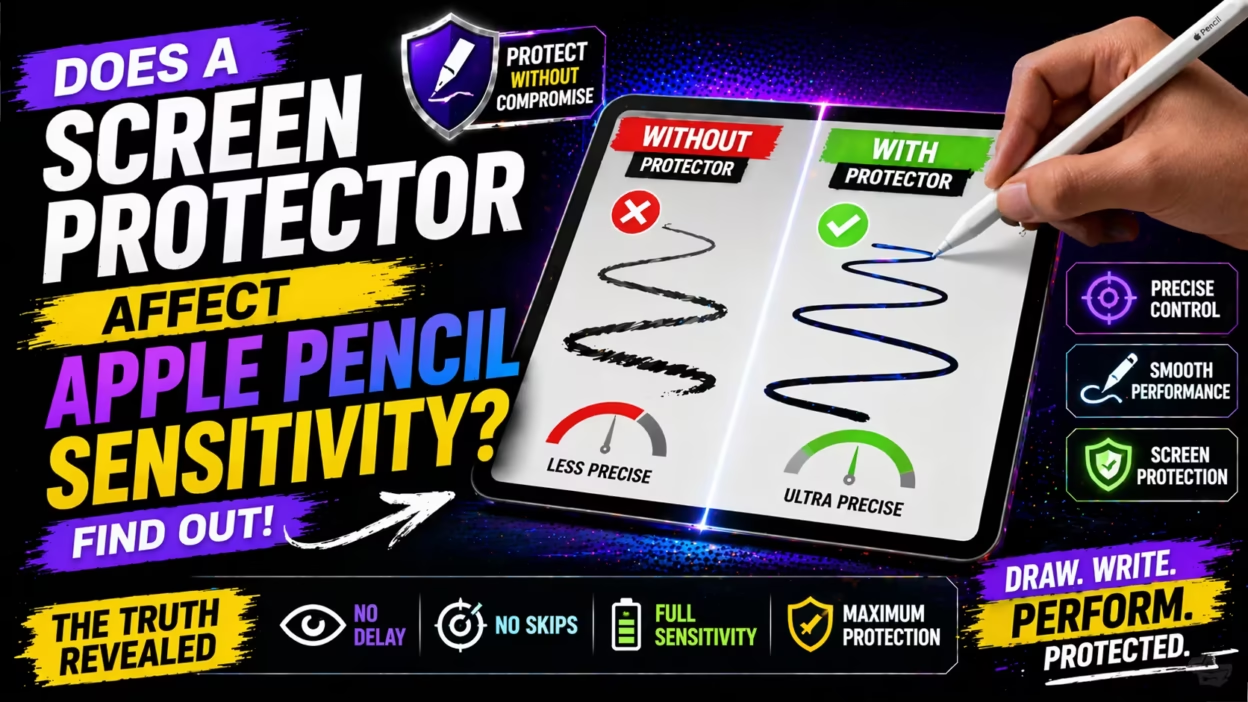
Many iPad users love the freedom and creativity that the Apple Pencil brings to their device. Whether you are a student, artist, designer, or just enjoy taking handwritten notes, the smooth interaction between the Apple Pencil and iPad screen is essential. But there’s often a big question: if you add a screen protector—to guard against scratches, fingerprints, and cracks—does it affect the sensitivity of your Apple Pencil?
This question is not just for artists or tech geeks. Everyday users also care because the feeling of writing or drawing can change, and you want your expensive tools to work perfectly. Some people say they notice a difference, while others don’t.
So, what’s really going on? Let’s explore the facts, the science, and the real-life experiences behind this issue. By the end of this article, you’ll have a clear answer and practical advice on whether using a screen protector with your Apple Pencil is a good idea.
How The Apple Pencil Works
To understand how a screen protector might affect sensitivity, it helps to know how the Apple Pencil interacts with the iPad.
The Apple Pencil (both 1st and 2nd generation) uses a combination of Bluetooth and a special tip technology. The iPad’s display has a layer that senses the Pencil’s touch. The Pencil can send signals about pressure, tilt, and position to the iPad. This allows for realistic writing, drawing, and shading.
The iPad’s screen is made of glass, which is hard and smooth. When you use the Apple Pencil directly on the glass, the device can sense even small changes in how hard you press or the angle you use. This direct connection is what gives the Apple Pencil its famous accuracy.
Types Of Screen Protectors
Not all screen protectors are the same. The kind you choose can make a big difference in how your Apple Pencil feels and works. Here are the main types you’ll find:
1. Tempered Glass Screen Protectors
These are made of real glass. They are thick and strong, which helps protect your screen from drops and scratches. They are very smooth, just like the iPad’s own glass screen.
2. Plastic (pet/tpu) Film Protectors
These are thin sheets of plastic, usually PET or TPU material. They are flexible, light, and easy to install. Some are glossy, while others have a matte finish.
3. Paperlike Screen Protectors
Paperlike protectors use a special texture that tries to make your iPad feel more like writing on paper. Many artists and note-takers like these because they give more resistance to the Pencil tip, creating a familiar feeling.
4. Privacy Screen Protectors
These have a filter that makes it hard for others to see your screen from the side. They are usually thicker than basic plastic films.
5. Anti-glare/matte Protectors
These are designed to reduce reflections and glare from lights. Many are also matte, which adds a textured feel.
Let’s look at how each type might impact the Apple Pencil’s sensitivity and performance.
The Science: How Protectors Affect Touch Sensitivity
The iPad’s screen uses capacitive touch technology. This means it detects changes in electrical signals when something conductive, like your finger or the Pencil’s tip, touches it.
When you add a screen protector, you’re adding a new layer between the Pencil and the screen’s sensors. If that layer is too thick, or not conductive enough, the iPad might have trouble detecting the Pencil’s fine movements.
Tempered glass protectors are the thickest. They can sometimes create a small gap between the Pencil and the sensors. Plastic films are thinner and often cause less interference. Paperlike protectors are in the middle; they are usually thin, but their rough surface can change how the Pencil moves.
Here’s a simple comparison:
| Protector Type | Thickness | Effect on Sensitivity | Feel |
|---|---|---|---|
| Tempered Glass | 0.3–0.5 mm | Possible minor reduction | Very smooth |
| Plastic Film | 0.1 mm or less | Little to none | Slightly grippy |
| Paperlike | 0.15–0.2 mm | Often minimal | Textured, like paper |
| Privacy | 0.3 mm or more | Can reduce touch accuracy | Slightly rough |
| Anti-Glare/Matte | 0.1–0.2 mm | Usually not noticeable | Matte, anti-reflective |
Real-world Experience: What Users Report
Numbers and specs are important, but real people’s experiences matter most. Most iPad users report that thin plastic and paperlike protectors do not create a big difference in Apple Pencil sensitivity. The touch response, pressure sensitivity, and tilt work as expected.
However, tempered glass and privacy protectors sometimes cause:
- Slight delay in response (input lag)
- Missed lines when drawing quickly
- Reduced pressure sensitivity (hard presses look the same as light presses)
- More frequent “skipping” when writing or sketching
Some users, especially digital artists, are more sensitive to these changes. If you are just taking notes or doing simple sketches, you might not notice any problem.
One non-obvious insight: installation quality matters a lot. If there are air bubbles or dust under your protector, they can make the Apple Pencil skip or stutter. Many people blame the protector, but the real issue is a poor installation.
Comparing Apple Pencil Performance: With And Without A Screen Protector
To get a clear answer, let’s compare the Apple Pencil’s sensitivity with and without different protectors. Here are the main aspects to consider:
1. Pressure Sensitivity
The Apple Pencil can sense how hard you press. Good for shading and calligraphy.
- No protector: Full, natural response.
- Plastic/Paperlike: Usually unchanged.
- Tempered Glass: Sometimes less sensitive. You may need to press harder.
2. Tilt Sensitivity
The Pencil knows when you tilt it, which is useful for shading.
- No protector: Works perfectly.
- Plastic/Paperlike: Almost the same.
- Glass/Privacy: May feel less accurate, especially for fine shading.
3. Line Smoothness
Artists care about how smooth their lines look.
- No protector: Very smooth, no “jitter.”
- Plastic: Smooth, but with a little more friction.
- Paperlike: More friction can make lines feel more controlled.
- Glass: Smooth, but sometimes skips if thick.
4. Input Lag
Lag is the delay between drawing and seeing the line appear.
- No protector: Almost zero lag.
- Plastic/Paperlike: No extra lag.
- Glass/Privacy: Rare, but can add a tiny delay.
5. Palm Rejection
This is when the iPad ignores your hand resting on the screen.
- All types: Good protectors don’t affect this, but poor-quality ones can confuse the iPad.
Here’s a quick summary table:
| Feature | No Protector | Plastic/Paperlike | Tempered Glass |
|---|---|---|---|
| Pressure Sensitivity | Excellent | Excellent | Good–Very Good |
| Tilt Sensitivity | Excellent | Very Good | Good |
| Line Smoothness | Smooth | Slight friction | Smooth, sometimes skips |
| Input Lag | None | None | Possible minor |
Are All Screen Protectors Compatible With Apple Pencil?
Most screen protectors claim to be Apple Pencil compatible. But what does this mean? It usually means:
- The material is thin enough for the Pencil to work normally.
- The surface does not wear down the Pencil tip too fast.
- There’s no interference with touch or gesture controls.
Some very cheap protectors, or thick privacy screens, may not actually support the Pencil well. Always check for reviews and real-user feedback before buying.
Pro tip: If you buy a “Paperlike” or matte protector, look for one that says “Apple Pencil optimized.” These are designed with artists and note-takers in mind.
The Pros And Cons Of Using A Screen Protector With Apple Pencil
Choosing a screen protector is about trade-offs. Here are the main pros and cons you should consider:
Pros
- Screen Protection: Prevents scratches, cracks, and scuffs from daily use.
- Improved Grip: Matte or paperlike textures can make drawing and writing feel more controlled.
- Glare Reduction: Matte protectors help reduce reflections, making it easier to see your work.
- Privacy: Privacy protectors keep your notes or artwork hidden from others.
Cons
- Possible Sensitivity Loss: Some protectors reduce the Pencil’s touch accuracy.
- Change in Feel: The sensation of writing or drawing can be less “natural.”
- Shorter Pencil Tip Life: Textured protectors can wear down the Pencil tip more quickly.
- Visual Quality: Matte or textured surfaces can make the screen look less sharp.
Artist And Note-taker Perspectives
If you’re an artist, you may want the most natural, “paperlike” feel. Real artists often say that a little texture helps them control their lines better. However, too much friction can slow down fast drawing styles.
If you’re a note-taker or student, you might care more about clarity and speed. A thin, clear protector is usually best because it keeps the screen bright and the text sharp.
Some digital artists use two iPads: one with a paperlike protector for drawing, and one with a smooth protector for reading and watching videos. If you only have one device, you’ll have to choose what matters most to you.

Apple’s Official Position
Apple does not officially recommend or warn against any brand of screen protector. However, in their Apple Pencil support documents, they do mention that using “thick or inappropriate” protectors can affect performance.
Apple Store staff often suggest:
- Use only well-known brands with good reviews.
- Avoid protectors that are very thick or have uneven surfaces.
- Clean your screen and Pencil tip often.
You can read more on the official Apple Support page.
Durability: What Happens To The Pencil Tip?
One thing many beginners miss: Paperlike and textured protectors can wear down your Apple Pencil tip faster. The rough surface acts like sandpaper. If you draw or write for hours every day, you may need to replace the tip every few months. Replacement tips are not very expensive, but it’s something to keep in mind.
Smooth glass or plastic protectors usually don’t cause this issue. If you notice your lines are not as sharp, or you hear scratching noises, check your Pencil tip for wear.
Installation Quality: Why It Matters
Even the best screen protector will cause problems if installed badly. Common mistakes include:
- Air bubbles: These block signals and make lines skip.
- Dust particles: Create bumps that interrupt smooth drawing.
- Misalignment: If the protector covers the camera or sensors, features like Face ID or touch gestures may not work.
Take your time with installation. Use the guide stickers, clean the screen very well, and press out all bubbles before using your Apple Pencil. If you’re not confident, have a pro install it for you.
User Stories And Examples
Let’s look at a few real-life examples:
- Emma, a graphic designer, tried three protectors: Glass, plastic, and paperlike. She found that the paperlike version helped her control her brush strokes, but wore out her Pencil tips quickly. The glass protector made her lines skip sometimes, so she now uses a thin matte film.
- James, a college student, noticed that after installing a cheap glass protector, his handwriting started to look shaky. He switched to a high-quality PET film and the problem disappeared.
- Lina, a hobby artist, prefers the smooth feel of the iPad glass. She uses no protector but cleans her screen often and carries her iPad in a case for safety.
These stories show that personal preference—and the quality of the protector—make a big difference.
Common Myths And Misunderstandings
Several myths circulate among new iPad owners. Let’s clear up a few:
1. “all Screen Protectors Ruin Apple Pencil Sensitivity.”
Not true. Most thin, good-quality protectors work fine.
2. “paperlike Protectors Are Always Better For Artists.”
Not always. Some artists prefer a glassy feel for faster strokes.
3. “you Don’t Need A Protector—ipad Glass Is Scratch-proof.”
IPad glass is strong, but sand, grit, and drops can still scratch or crack it.
4. “any Screen Protector Will Do.”
Cheap, thick, or poorly made protectors can cause real problems.
Tips For Choosing The Best Screen Protector For Apple Pencil
If you decide to use a screen protector with your Apple Pencil, here’s what to look for:
- Check Thickness: Thinner is usually better for sensitivity.
- Surface Texture: Decide if you want a smooth, matte, or paperlike feel.
- Apple Pencil Compatibility: Look for this on the product box or website.
- Brand Reputation: Stick with known brands or ones with strong user reviews.
- Easy Installation: Kits with alignment tools and dust removers help.
- Warranty/Return Policy: Just in case it doesn’t work out.
- No Rainbow/Glare Effects: Some low-quality protectors make your screen look weird in sunlight.
How To Test Your Apple Pencil Sensitivity
After installing a protector, you can check if your Pencil is working well:
- Draw straight and curved lines at different speeds.
- Try shading with pressure and tilt.
- Write quickly and see if any letters are missing.
- Check for lag by drawing fast scribbles.
If you notice problems, try cleaning the screen and the Pencil tip. If the issue remains, the protector might be too thick or not compatible.
How To Fix Sensitivity Problems
If your Apple Pencil feels less sensitive after installing a screen protector, try these steps:
- Clean Everything: Use a microfiber cloth to clean the screen and Pencil tip.
- Reinstall: Remove the protector, clean the screen, and try again.
- Update Software: Make sure your iPadOS is up to date.
- Try a Different Protector: Some brands just work better than others.
- Replace Pencil Tip: If it’s worn down, a new tip can help.

When You Might Not Need A Screen Protector
Some users prefer to use their iPad without any protector. This is okay if:
- You are careful and don’t drop your device often.
- You use a good case for carrying your iPad.
- You clean your screen regularly to remove grit.
Remember, the iPad’s glass is tough, but not indestructible. If you draw outside, have pets, or share your iPad, a protector is a smart idea.
Practical Advice: What Should You Do?
Here’s a simple decision guide:
- If you want the most “paper-like” feel for art or notes, try a Paperlike or matte protector, but be ready to replace Pencil tips more often.
- If you want the clearest, brightest screen with minimal change in sensitivity, use a thin plastic film protector.
- If you want the toughest protection, try tempered glass, but check user reviews for Apple Pencil compatibility.
- If privacy matters, a privacy protector works, but test sensitivity before committing.
Always install carefully, and test your Pencil before you start a big project.
Frequently Asked Questions
Does A Paperlike Screen Protector Reduce Apple Pencil Sensitivity?
A good-quality paperlike protector usually does not reduce Apple Pencil sensitivity in a way most users will notice. It adds texture, which changes the feel, not the accuracy. Some very cheap or thick versions may make the Pencil less precise. Always check that your protector is marketed as “Apple Pencil compatible.”
Can A Tempered Glass Protector Damage The Apple Pencil Tip?
Tempered glass is smooth and does not wear down the Pencil tip quickly. However, if the glass is too thick or has rough edges, it could affect drawing accuracy or even chip the tip if you press very hard. Properly installed, high-quality glass protectors are generally safe for the Apple Pencil.
What Should I Do If My Apple Pencil Skips Or Lags After Installing A Screen Protector?
First, clean your screen and the Pencil tip, as dirt can cause skipping. Check for air bubbles or dust under the protector. If the problem continues, try removing and reinstalling the protector, or switch to a thinner model. Software updates can also help fix lag.
Is It Better To Use The Apple Pencil Without A Screen Protector?
For the smoothest, most natural feel, using the Apple Pencil directly on the iPad glass is best. But this leaves your screen unprotected. If you are careful and don’t mind small scratches or fingerprints, you can skip the protector. Otherwise, a thin, high-quality protector is a good compromise.
How Often Should I Replace My Apple Pencil Tip When Using A Textured Screen Protector?
If you use a paperlike or other textured protector daily, check your Pencil tip every few weeks. Replace it if it feels rough, makes scratching noises, or your lines look less sharp. Most users need a new tip every 3–6 months with heavy use.
Bringing It All Together
So, does a screen protector affect Apple Pencil sensitivity? The answer is: it depends on the type, quality, and thickness of the protector—and how well you install it. Most thin, high-quality protectors have little or no effect on Pencil performance. Paperlike versions change the feel but not the accuracy. Tempered glass and privacy protectors can cause small problems, especially if they are thick or poorly made.
For artists and serious note-takers, the right protector adds comfort and control without sacrificing sensitivity. For others, the peace of mind from scratch protection is worth a small change in feel. Choose wisely, install with care, and enjoy your creative journey on the iPad.
For a deeper technical explanation of how capacitive touch works, visit the Wikipedia page on capacitive sensing.


