

When Your Phone Develops a Mind of Its Own
You set your phone down, and suddenly it starts opening apps, typing random letters, or dialing contacts. The screen appears to have a mind of its own. This is ghost touch, a phantom input where your touchscreen registers taps, swipes, and gestures without any finger making contact.
Ghost touch can be alarming, but it’s usually not a sign of hacking or malware. Instead, the cause is often something you can fix yourself. Common triggers include a poorly fitted or low-quality screen protector, dirt or moisture trapped under the glass, electrical noise from a cheap charger, software bugs, or physical damage to the digitizer layer.
A screen protector that’s lifted at the edges, trapping an air bubble or dust, can confuse the touch sensor. So can a tight case pressing against the glass. But the issue might also be as simple as a dirty screen, a faulty cable, or a glitchy app.
The good news is you can diagnose and often resolve ghost touch at home without a repair bill. The sections ahead walk you through quick tests, step-by-step fixes for both iPhone and Android, and advice on when a screen replacement or professional repair is the right call. If your protector is the culprit, replacing it with a properly fitted option from a brand like SuperGuardZ can prevent the problem from returning.
What Exactly Is Ghost Touch?
Ghost touch, sometimes called phantom touch, happens when your phone’s screen registers taps or swipes you never actually made. Apps open by themselves, the keyboard types random letters, and your device seems to have a mind of its own. It can feel unsettling, but in most cases the cause is straightforward: a hardware issue like a damaged digitizer, a poor-fitting screen protector trapping dust or moisture, a faulty charger sending electrical noise, or a software glitch after an update.
Ghost touch is different from a touch dead zone. A dead zone is an area of the screen that does not respond when you tap it — it ignores your input. Ghost touch does the opposite: it registers input that was never there. Understanding the difference helps you describe the problem accurately to a technician or when searching for a fix.
It is also natural to worry that ghost touch means your phone has been hacked. While sophisticated malware could theoretically simulate touch inputs, this is extremely rare. The vast majority of ghost touch cases are caused by physical or electrical interference, not a virus. If you are experiencing phantom taps, running a trusted security scan is a sensible low-effort step, but you will almost certainly find the real cause in a screen protector that needs adjusting, a dirty screen, or a minor hardware fault.
How a Screen Protector Triggers Phantom Taps
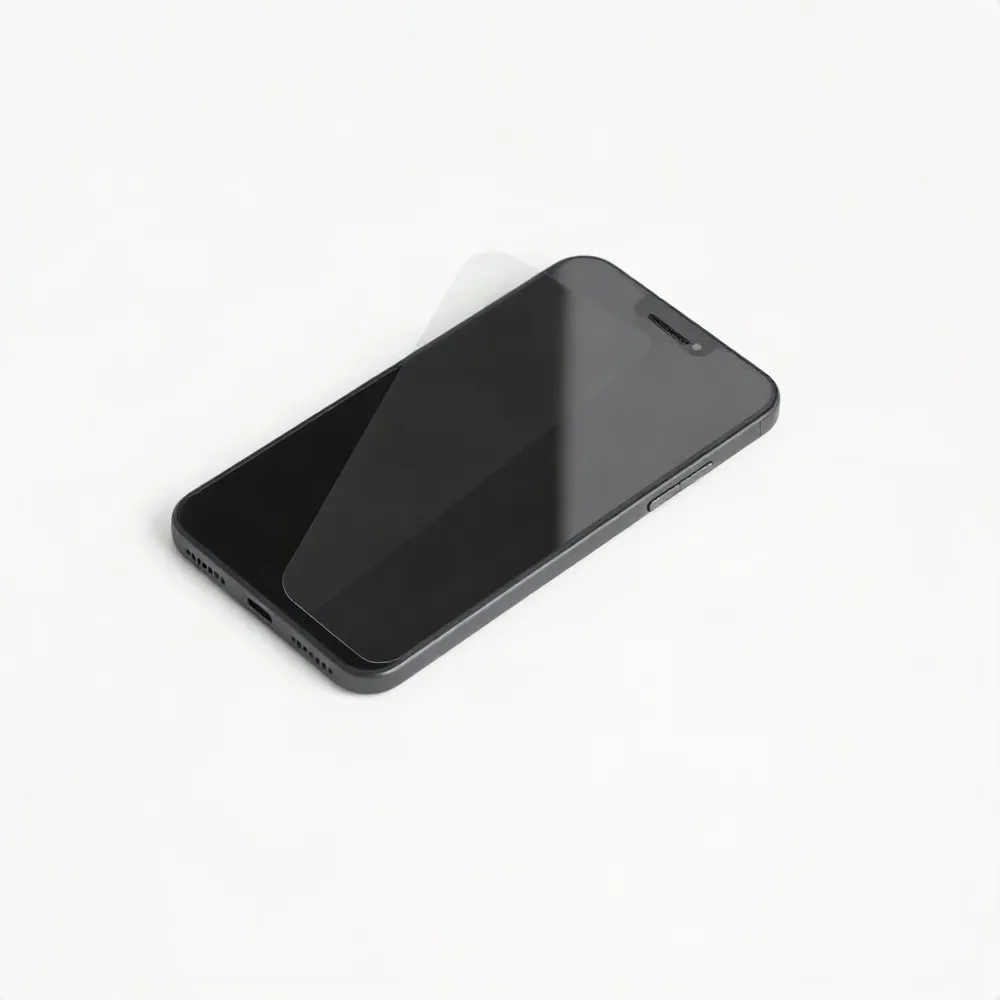
Not all screen protectors are created equal. A low-quality or poorly installed protector can trap air bubbles or dust against your display, creating tiny gaps that confuse the touch sensors beneath the glass. These air gaps change how the digitizer detects capacitance, often resulting in erratic taps or swipes you never intended.
Thickness plays a big role. Tempered glass protectors thicker than 0.33mm can noticeably reduce touch sensitivity, making the screen less responsive and more prone to ghost touches. This is especially common on phones with curved edges, where standard protectors struggle to form a complete seal.
Moisture and dust are another culprit. Even a tiny speck of dirt or a droplet of sweat trapped under the protector can conduct electricity and fool the digitizer into reading it as a finger press. Over time, wear and lifting at the edges let more debris sneak in, compounding the problem.
The solution is straightforward: choose a precision-cut protector from a trusted brand. SuperGuardZ screen protectors are designed to sit flush with your device’s display, using high-quality adhesive that eliminates air pockets and stays firmly in place. They stay within the recommended thickness range, so your touchscreen remains as responsive as the day you bought the phone.
Can a Screen Protector Cause Ghost Touch? Quick Signs You Have Ghost Touch
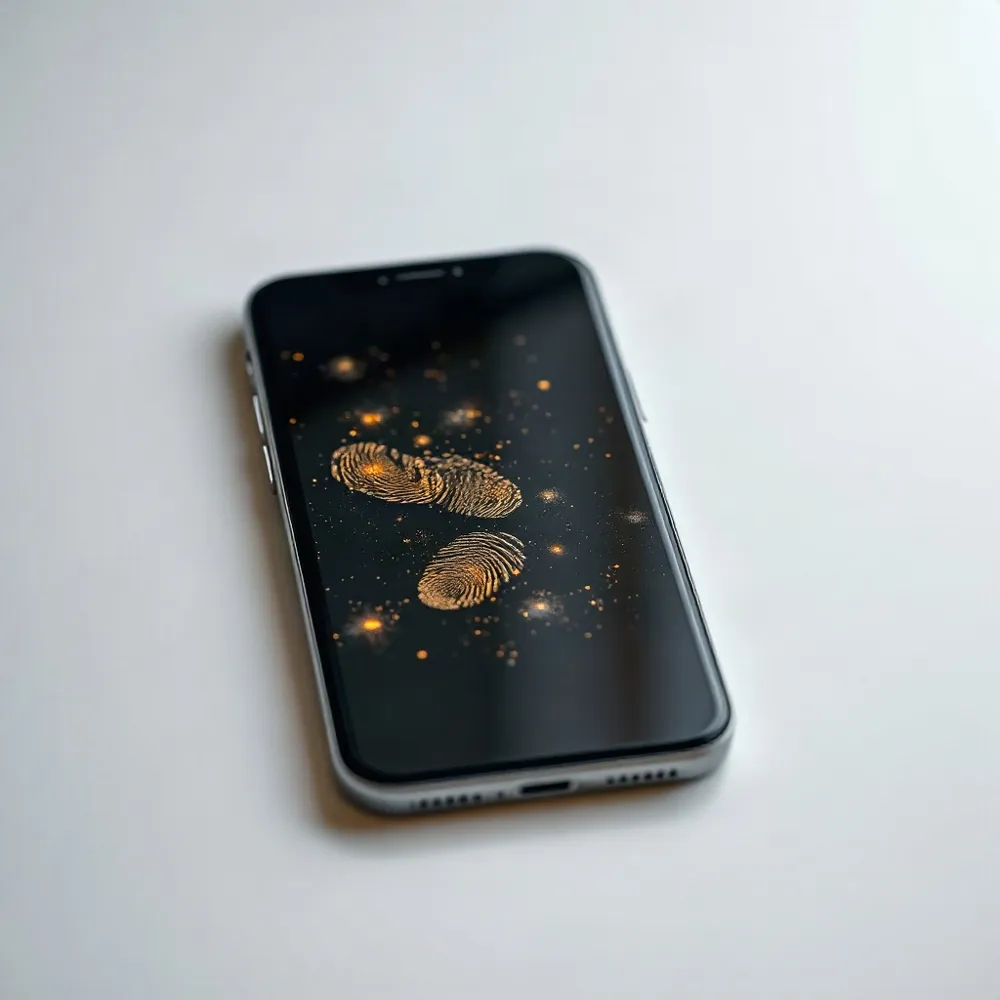
The clearest sign is your phone doing things on its own — opening apps, typing random letters, scrolling through pages, or dialing contacts — when you are not touching the screen. These phantom taps can happen anywhere, even while the device sits idle on a table.
A quick way to confirm is a hands-off test. Place your phone flat on a surface, keep your hands and any objects away from the glass, and run a free browser-based touch test. These tools log every touch event for a set period, usually 20 seconds. If the screen registers taps during that time, you have ghost touch.
Pay attention to when the behavior stops. If ghost touches disappear after you clean the display with a microfiber cloth or remove your screen protector, the cause is surface-related — likely dirt, moisture, or a loose protector — not a hardware failure. A poorly fitted or low-quality protector is a common trigger, and swapping it for a precision-cut option like those from SuperGuardZ can prevent the problem from returning.
Ghost touches can also be intermittent. They may come and go randomly, especially after a recent software update or when the phone is warm. If the issue is occasional, start with a simple restart and check for pending system updates before diving into deeper troubleshooting.
Run a Touch Sensitivity Test
Before you start swapping parts or panicking, you need to confirm that ghost touch is actually happening. A proper test can tell you whether the issue is a software glitch, a bad charger, or a damaged digitizer.
Use Built-In Diagnostics First
Many phones come with hidden diagnostic tools. On Samsung devices, open the Phone dialer and enter <code>#0#</code> to access a hardware test menu — select “Touch” and drag across every section of the screen. On iPhones, go to <strong>Settings > Accessibility > Touch > Touch Accommodations</strong> and enable the feature, then test touch behavior. If your Pixel runs Android 14 or later, check <strong>Settings > Display & touch</strong> for the touch diagnostics option.
Run an Online Touch Screen Test
A browser-based test is the quickest way to map every area of your display. Sites like <strong>screendetect.com</strong> and <strong>screentester.io</strong> let you drag a finger across a grid of squares; any square that stays blue indicates a dead or unresponsive spot.
For ghost touch specifically, run a hands-off test: place the phone on a flat surface, disconnect all cables, keep your hands and objects away from the glass, and let the test run for about 20 seconds. If the tool logs any taps or swipes while you aren’t touching it, you have ghost touch.
Check Multitouch with an App
Download a free hardware-checking app like <strong>DevCheck</strong> or <strong>Touch Screen Test</strong> (by Microsys Com Ltd.) to run a multitouch test. This shows how many simultaneous touch points your screen registers and can reveal erratic input that looks like ghost touch.
If you find dead zones or phantom taps, take a screenshot of the results. Sharing that image with a repair technician gives them a clear starting point. Once you replace a defective display, protecting the new screen with a premium tempered-glass protector — like those from <strong>SuperGuardZ</strong> — keeps it safe from scratches and drops.
Fix Ghost Touch on iPhone: Step by Step
Ghost touch on an iPhone can be frustrating, but most cases have a simple fix. Start by cleaning your screen and hands with a dry microfiber cloth, then remove any screen protector or case that might be trapping dust or pressing on the glass. If you are using a low-quality screen protector, replacing it with a properly fitted one from SuperGuardZ can eliminate the issue entirely.
If the phantom taps only appear while charging, switch to a certified MFi charger. Cheap cables often leak electrical noise into the phone, which the touch controller misreads as taps.
Force restart your iPhone by pressing and releasing Volume Up, then Volume Down, then holding the Side button until you see the Apple logo. This clears temporary glitches that can cause erratic touch behavior.
Next, update to the latest iOS version — system updates often include patches for touch-handling bugs. If the problem continues, back up your data and try a full restore via recovery mode. That wipes out any stubborn software corruption that a regular restart misses.
If ghost touch still appears in every app after these steps, the screen hardware is likely failing. At that point, professional repair or a screen replacement is your best option.
Fix Ghost Touch on Android (Samsung & More)
Start with the simplest fix: clean the screen with a soft microfiber cloth, remove any screen protector or case, and restart the phone. Many ghost touch issues on Android phones are caused by trapped dust, moisture, or a poor-fitting protector. Removing the protector and cleaning the glass often stops the phantom taps immediately.
If ghost touches happen only while charging, the charger or cable could be introducing electrical interference. Swap to a different, preferably original or certified, charger and cable. If the problem stops, your old charger was likely the cause.
Boot into Safe Mode
Safe Mode disables all third-party apps. If ghost touch stops in Safe Mode, a recently installed app is triggering it. Uninstall apps one by one, especially screen overlay tools, gaming boosters, or launcher replacements, until you find the culprit.
Update Software and Calibrate Touch
Manufacturers often release patches that fix touch-handling bugs. Go to Settings > System > System update and install any pending updates. On Samsung devices, you can run a touch diagnostic through the Samsung Members app (Diagnostics > Phone diagnostics > Touch screen). Some Android phones offer a touch sensitivity mode in Settings to improve response when a screen protector is installed.
When Hardware Is to Blame
If ghost touches survive a factory reset and persist with no case, no protector, and a verified charger, the digitizer is likely damaged. Professional screen replacement is the only reliable cure. A properly fitted, high-quality screen protector from SuperGuardZ can help prevent future digitizer damage by absorbing impacts that would otherwise crack the glass or fracture the touch grid.
| Fix Step | When to Try | What to Expect |
|---|---|---|
| Clean screen, remove protector, restart | First sign of ghost touch | Often resolves dust or moisture issues immediately |
| Swap charger and cable | Ghost touch only while charging | Stops phantom taps if charger was the cause |
| Boot into Safe Mode | After restart fails | Identifies third-party app causing the issue |
| Update software, calibrate touch | After safe mode is clear | Patches touch-handling bugs |
| Factory reset | All else fails | Eliminates software causes definitively |
| Professional screen repair | Ghost touch survives reset | Replaces damaged digitizer |
Can an App or a Screen Replacement Fix It?
When ghost touches keep happening, it’s natural to wonder if a quick app download or a screen swap will solve the problem. The answer depends on what’s actually causing the phantom taps.
Apps Can Help — But Only for Software Issues
No app can repair a cracked digitizer or a swollen battery. However, software-based ghost touches — caused by system bugs or conflicting third-party apps — can sometimes be reduced with calibration tools. On Android, apps like “Touchscreen Calibration” can recalibrate your screen’s response. On iOS, the “Phone Doctor Plus” app helps with diagnostics, and built-in Accessibility settings allow you to adjust touch accommodations. These work best when combined with a restart, a screen clean, and removing a faulty protector.
Always rule out software first: restart your device, boot into Safe Mode to test if a third-party app is responsible, and if problems persist, try a full factory reset. If ghost touches stop after a reset, the issue was software and you just saved the cost of a repair.
Screen Replacement Fixes Hardware Damage
If ghost touches survive a factory reset — or if they started after a drop, water exposure, or a visibly cracked screen — the culprit is likely a damaged digitizer or display assembly. In those cases, replacing the screen is the reliable fix. A quality replacement panel from a trusted source restores normal touch behavior, provided all internal connectors are properly reseated during installation.
What It Costs and How to Save
Professional screen replacement runs between $100 and $400, depending on your phone model and the repair shop. Before paying out of pocket, check your warranty or insurance plan — some cover accidental damage or offer reduced-cost repairs. A high-quality tempered-glass screen protector from SuperGuardZ adds a durable first line of defense against the drops and scratches that lead to ghost touch issues in the first place, helping you avoid costly repairs down the road.
How to Remove a Screen Protector Safely
Removing an old or damaged screen protector doesn’t have to be stressful. Start by peeling from one corner — a piece of tape or a thin plastic card helps lift the edge without forcing it.
If the protector feels stuck, warm it with a hairdryer on low heat for about 15 seconds. This softens the adhesive, making it easier to pull gently and evenly. Rushing can crack the glass or leave sticky residue behind.
For any leftover glue, a bit of tape works perfectly to lift it off cleanly. With patience and a steady hand, you can swap out your old protector for a fresh, perfectly installed SuperGuardZ one in no time.
Permanent Fixes: From Software to Hardware
Ghost touch can often be fixed permanently, but the right solution depends entirely on the root cause. If the issue is a software bug or glitch, a straightforward update or factory reset usually resolves it for good. If the problem stems from physical damage — a cracked screen, loose display connector, or failing digitizer — those issues require professional repair or a full screen replacement.
When Software Fixes Are All You Need
A software-triggered ghost touch is often a one-time event. Installing the latest system updates, booting into Safe Mode to rule out a misbehaving app, or performing a factory reset (after backing up your data) can eliminate the bug entirely. Once the update or reset is complete, the ghost touch typically does not return, because the underlying code that caused it has been replaced or corrected.
When Hardware Repair Is the Only Answer
If ghost touch persists after every software fix, the digitizer or display assembly is likely damaged. Physical drops, water exposure, and even a swollen battery can permanently distort the touch layer. Professional repair — replacing the screen or digitizer — is the only reliable cure. After repair, the phone should behave normally again, but the investment in a fix can feel wasted if the new screen gets damaged in another drop.
That is where prevention pays off. A high-quality, properly fitted screen protector — like those from SuperGuardZ — adds a durable barrier that absorbs impact and keeps out dust and moisture. By shielding the digitizer from the everyday accidents that lead to hardware ghost touch, a SuperGuardZ protector helps your phone stay trouble-free long after a repair. Pair a fix with a quality protector, and you give your screen the best chance of staying permanently responsive.
Stay in Control with the Right Protection
Ghost touch can be frustrating, but as you have seen, the causes range from a dirty screen to a failing digitizer. The good news: the easiest fix is often the one you can check in seconds — your screen protector.
Before you assume the worst (a cracked digitizer or a swollen battery), start with the simple steps: clean the screen, remove any case, test with a different charger, and run a quick touch sensitivity test. Many ghost touch issues stop right there.
The right screen protector can prevent the problem from ever starting. SuperGuardZ protectors are precision-cut for your specific phone model, with a full adhesive layer that stays flat against the glass — no air bubbles, no lifting edges, and no trapped dust that could confuse the digitizer. They are also thin enough (under 0.33mm) that touch sensitivity stays crisp, so you get reliable protection without the phantom taps.
A quality protector does double duty: it stops scratches and cracks that can damage the digitizer over time, which is a common hardware cause of ghost touch. With a properly fitted SuperGuardZ protector, you are not just avoiding one nuisance — you are protecting your phone from the kind of damage that leads to expensive repairs down the road.
Keep your phone responding to you — and only you.


