
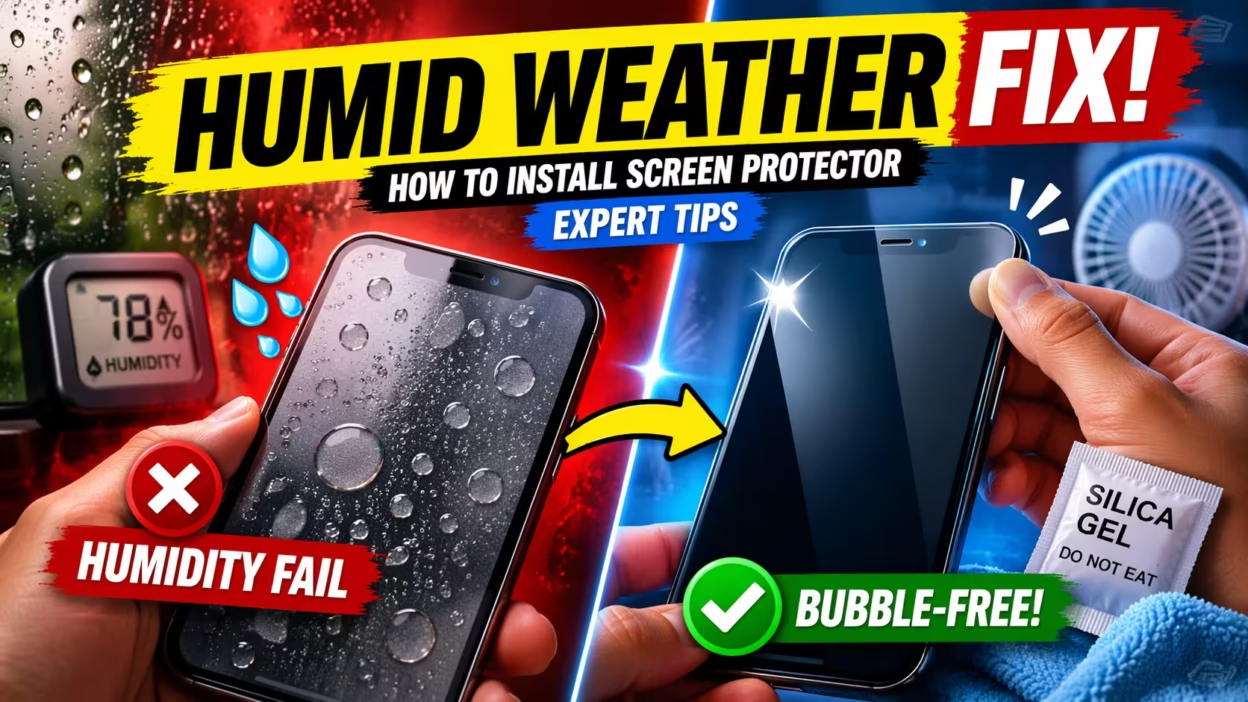
Installing a screen protector on your phone or tablet can be a challenge, especially when you’re dealing with humid weather. Moisture in the air can make dust stick more easily, cause bubbles under the protector, and even leave foggy marks on your screen. But with the right approach, you can get a clean, bubble-free result even on a sticky, muggy day.
If you’ve ever tried to put on a screen protector and ended up with trapped dust, smudges, or annoying bubbles, you know how frustrating it feels. The good news is, you can avoid most common mistakes if you understand how humidity affects the process and take a few extra steps.
In this guide, you’ll learn why humid weather makes installation harder, what you need to prepare, step-by-step instructions, and expert tips for a perfect fit—even when the air feels thick.
Why Humid Weather Makes Screen Protector Installation Harder
You may wonder, “Why is it so much harder to install a screen protector when it’s humid?” Here’s what’s really happening:
Humidity is the amount of water vapor in the air. When humidity is high, even if you don’t see water, it’s there, floating around you. This extra moisture can cause several problems:
- Dust particles stick more easily to your screen and the protector.
- Water vapor can get trapped between the protector and the screen, forming bubbles that are hard to remove.
- Your hands and the screen might feel slightly damp, making it tough for adhesives to stick well.
A study by the International Journal of Adhesion and Adhesives found that adhesive bonds can weaken by up to 20% in high humidity. This means your screen protector may not stay on as firmly or could start peeling at the edges sooner. In addition, dust floating in humid air is more likely to settle on sticky surfaces.
Humidity levels above 60% are usually considered high for electronics work. In many places, especially during rainy seasons or in coastal areas, humidity can easily reach 80% or more.
What You Need Before You Start
Preparation is key to success—especially when fighting against the challenges of humid weather. Gather these items before you begin:
- Your screen protector (make sure it’s the right size for your device)
- Microfiber cleaning cloth
- Dust removal stickers or a piece of masking tape
- Wet wipe (usually included with protectors)
- Dry wipe (also usually included)
- Squeegee or a credit card (wrapped in a soft cloth)
- A clean, well-lit workspace
- A small fan or air conditioner (to help reduce humidity, if possible)
- Latex or nitrile gloves (optional, but helps avoid fingerprints)
- A bowl of water (to help settle dust in the air)
Having everything ready before you start will help you avoid rushing, which often leads to mistakes.
Setting Up Your Workspace For Humid Conditions
Your environment matters a lot when installing a screen protector, especially if the weather is humid. Here’s how to set up the best possible workspace:
Choose The Right Room
Bathrooms are often recommended for screen protector installation because running a hot shower creates steam, which makes dust settle. However, in humid weather, the air is already moist, so this trick can backfire. Instead:
- Pick a room with good air circulation and minimal dust.
- Avoid rooms with open windows during humid weather, as outside air can increase humidity and bring in more dust.
- If possible, use a room with air conditioning or a dehumidifier to lower the humidity. Even a small drop makes a difference.
Reduce Humidity If Possible
If you have access to a dehumidifier or air conditioner, run it for at least 30 minutes before starting. This can bring humidity down by 10-20%, making installation easier.
If you don’t have these, place a small fan nearby to keep air moving. Moving air helps prevent dust from settling on your screen.
Trap Dust
Fill a shallow bowl with water and place it near your workspace. Water attracts and traps dust particles in the air, keeping them away from your device.
Prepare A Clean Surface
Wipe down your work surface with a damp cloth to remove dust. Lay out a clean towel to place your device on. This reduces the risk of dust transferring from the table to your phone or tablet.
Step-by-step Guide: How To Install A Screen Protector In Humid Weather
Now you’re ready to begin. Follow these steps carefully for the best results:
1. Wash Your Hands And (optional) Wear Gloves
Wash your hands with soap and water. Dry them completely with a lint-free towel. Consider wearing latex or nitrile gloves to prevent fingerprints and skin oils from getting on the screen or protector.
2. Turn Off Your Device
Power off your phone or tablet. This reduces static electricity, which can attract dust, and prevents accidental touches during installation.
3. Clean Your Screen Thoroughly
Use the wet wipe to clean the screen, removing fingerprints, oils, and smudges. Next, use the dry wipe to remove any remaining moisture. Work quickly, as the humid air can leave streaks or condensation.
Inspect the screen in bright light from different angles to ensure there are no marks or dust specks. Even a single speck can cause a bubble under the protector.
4. Remove Dust With Stickers Or Tape
Use a dust removal sticker or a piece of masking tape to gently dab the screen. Focus on the corners and edges, where dust tends to hide. In humid weather, dust is more likely to stick, so be extra thorough.
5. Peel The Backing Off The Screen Protector
Carefully peel off the protective backing from the adhesive side of the screen protector. Try not to touch the sticky surface. Hold the protector by the edges.
Tip: If the protector comes with alignment tabs, use them—they make positioning easier.
6. Align The Protector And Apply
Line up the protector with your device’s screen, using cutouts (for the camera, speaker, or button) as guides. Hold it above the screen, double-check alignment, then lower it gently onto the screen.
Let the adhesive begin to bond naturally. Don’t press down hard yet.
7. Press From The Center Outwards
Using a squeegee or the edge of a credit card wrapped in a soft cloth, gently press the center of the protector. Move outward toward the edges, pushing out any air or moisture bubbles as you go.
If you see a bubble, lift the protector gently to that point and try again. In humid weather, bubbles may be water vapor rather than air—be patient, as some will disappear in a few hours.
8. Final Dust Check
Examine the screen again for dust, bubbles, or smudges. Use the sticker to lift the protector slightly if you need to remove a dust particle, then press it back down.
9. Let It Set
Leave your device alone for at least 30-60 minutes after installation. This allows the adhesive to cure and gives time for small bubbles to disappear.
10. Wipe The Surface
Once you’re sure the protector is fully attached, gently wipe the surface with a clean microfiber cloth to remove fingerprints or smudges.
Differences Between Installing In Humid Vs. Dry Weather
You might wonder how much of this process is different from a normal day. Here’s a quick comparison:
| Factor | Humid Weather | Dry Weather |
|---|---|---|
| Dust in Air | More likely to stick to surfaces | Less likely to stick |
| Bubbles | Often water vapor, harder to remove | Mainly air, easier to push out |
| Screen Feel | May feel slightly damp | Dry to the touch |
| Adhesive Performance | May be weaker, edges can peel | Stronger and more reliable |
| Time Needed | May take longer for bubbles to disappear | Usually sets quickly |
Types Of Screen Protectors And Their Behavior In Humidity
Not all screen protectors react the same way to humidity. Here’s how each type behaves:
Tempered Glass
Tempered glass protectors are thicker and stiffer. Their adhesive is strong, but high humidity can still cause tiny water bubbles to form. These bubbles often disappear after a few hours as the adhesive cures.
Pet Film
PET film protectors are thinner and more flexible. They are more sensitive to dust and humidity, and can trap moisture more easily. Alignment is trickier, and bubbles are harder to remove in sticky weather.
Tpu (flexible) Film
TPU films are soft and can “heal” small scratches. They require a wet-install method (using a spray solution). In humid weather, the drying process takes longer, increasing the risk of dust sticking.
Here’s a quick comparison:
| Type | Humidity Resistance | Ease of Install |
|---|---|---|
| Tempered Glass | Good | Easy |
| PET Film | Fair | Moderate |
| TPU Film | Poor (unless controlled) | Hard |
Mistakes To Avoid When Installing In Humid Weather
Even experienced users make mistakes, especially when humidity is high. Here are common errors and how to avoid them:
- Skipping the dust removal step: In humid air, dust is sneaky. Don’t assume a quick wipe is enough.
- Touching the adhesive side: Moisture from your fingers can leave marks.
- Applying in a steamy bathroom: While it helps with dust, it makes humidity worse. Stick to air-conditioned or dehumidified rooms.
- Not waiting after installation: Some bubbles disappear as the adhesive cures. Give it time before trying to fix every small bubble.
- Using a dirty cloth: Microfiber cloths can hold dust. Always use a clean one, or you’ll add more particles.
Non-obvious insight: Many people think air bubbles are the only problem, but in humid weather, water vapor bubbles can appear. These are smaller and less noticeable but can lead to hazy spots if not given time to dry out.
Pro Tips For A Perfect Install In Humid Weather
Want your screen protector to look like it was installed by a pro? Try these advanced tricks:
- Run a dehumidifier or air conditioner for an hour before starting. Even a small drop in humidity can make a big difference.
- Install at night when humidity is usually lower, especially in tropical climates.
- Use the “hinge method”: Attach two strips of tape to one edge of the protector and device, creating a hinge. This lets you align perfectly before removing the backing.
- Warm up the device slightly (not hot, just lukewarm). Warmer screens can help adhesives bond better, but don’t overdo it—too much heat can damage your device.
- If you see a bubble, press and hold for 20 seconds, then release. This helps moisture evaporate.
- For TPU films, use less spray solution than usual. Humid air slows drying, so extra liquid only increases the risk of bubbles.
Non-obvious insight: If your hands are sweaty due to humidity, use finger cots (small finger covers) instead of gloves. They give you better grip and control without leaving marks.
What To Do If You Get Bubbles Or Dust Under The Protector
It’s frustrating to see a bubble or speck right after installing. Here’s what you can do:
- For bubbles: Use the squeegee to push from the center outward. If it’s water vapor, it may fade after a few hours.
- For dust specks: Use a dust removal sticker to lift the protector slightly at the edge nearest the dust. Dab the dust, then press the protector back down. Don’t remove the entire protector, as this increases the risk of more dust and weakens the adhesive.
- For persistent haze: Sometimes, a foggy look appears due to moisture. Leave your device in a cool, dry room for a few hours—the haze usually clears as the adhesive sets.
If all else fails and the protector is unusable, it’s better to replace it than live with poor clarity.
How To Lower Humidity In A Room Before Installation
If you live in a humid area, you might need to fight the weather. Here are some practical ways to lower humidity for a short time:
- Air conditioner: Most effective for quick results. Run it on “dry” mode if available.
- Dehumidifier: Removes water from the air. Even a small, portable one can make a difference in a closed room.
- Salt bowls: Place bowls of rock salt around the room. Salt absorbs moisture, though it works slowly.
- Ventilation: Use a fan to keep air moving, but avoid blowing directly onto the device to prevent dust.
- Weather timing: Install during the driest part of the day—often late morning or late evening.
Here’s a comparison of common methods:
| Method | Effectiveness | Speed |
|---|---|---|
| Air Conditioner | High | Fast |
| Dehumidifier | High | Moderate |
| Salt Bowls | Low | Slow |
| Fan | Medium (for dust, not humidity) | Fast |
If you must install the protector in less-than-ideal conditions, prioritize air movement and clean surfaces.

Maintaining Your Screen Protector After Installation
Even after you’ve installed the protector, humidity can still affect it. Here’s how to keep it looking clear:
- Avoid using your device in steamy places (like bathrooms after a shower) for the first 24 hours.
- Clean with a dry microfiber cloth—avoid sprays, as extra moisture can get under the edges.
- Check the edges for lifting or peeling, especially in the first few days. Press down gently if you see any lifting.
- If you notice haze or bubbles after a few days, leave your device in a cool, dry area overnight. Most minor issues resolve on their own.
When To Replace Your Screen Protector
Screen protectors don’t last forever, and humidity can shorten their lifespan. Here are signs it’s time for a new one:
- Edges are peeling or lifting and don’t stick back down.
- Scratches or cracks affect your view.
- Large bubbles that won’t disappear, even after several days.
- Protector feels loose or slides easily on the screen.
On average, most high-quality protectors last 6-12 months, but in humid climates, you might need to replace them more often.

Environmental Impact: Are There Humidity-proof Screen Protectors?
Manufacturers are starting to make screen protectors with improved adhesives for humid environments. Some brands use hydrophobic coatings that repel water and resist fogging. However, no screen protector is completely humidity-proof.
If you live in a tropical area or have frequent humidity issues, look for protectors labeled as “hydrophobic” or “anti-fog”. These use special layers to resist water vapor and keep the screen clear.
For more information about humidity and adhesives, you can check out research from the Journal of Adhesion Science and Technology.
Frequently Asked Questions
How Do I Know If Humidity Is Affecting My Screen Protector Installation?
If you see foggy spots, tiny water bubbles, or the protector doesn’t seem to stick well at the edges, humidity is likely the cause. These issues are much more common in sticky, muggy weather.
Can I Use A Hairdryer To Remove Bubbles Caused By Humidity?
It’s best to avoid direct heat. While a hairdryer on low can help with air bubbles, it can make water vapor bubbles worse and might damage your device. Instead, leave the device in a cool, dry place and let time do the work.
Is It Safe To Install A Screen Protector Outdoors In Humid Weather?
No. Outdoor air often has more dust and higher humidity, especially in tropical climates. Always install protectors indoors, in a controlled environment.
What If I Make A Mistake—can I Reapply The Protector?
You can lift and reapply a screen protector once or twice if you do it carefully. However, each time you lift it, the adhesive gets weaker and may trap more dust. If the protector won’t stick or looks cloudy, it’s better to use a new one.
Are Certain Brands Better For Humid Climates?
Yes. Some brands use hydrophobic coatings or stronger adhesives designed for humid environments. Look for products advertised as “anti-fog” or “humidity resistant.” Reading reviews from people in similar climates can help you choose the right one.
Installing a screen protector in humid weather doesn’t have to end in frustration. With the right preparation, careful technique, and a little patience, you can get a crystal-clear result that protects your device for months to come. Remember, the most important steps are cleaning, dust removal, and giving your device time to adjust.
If you make a mistake, don’t stress—practice makes perfect, and your next install will be even better.


