
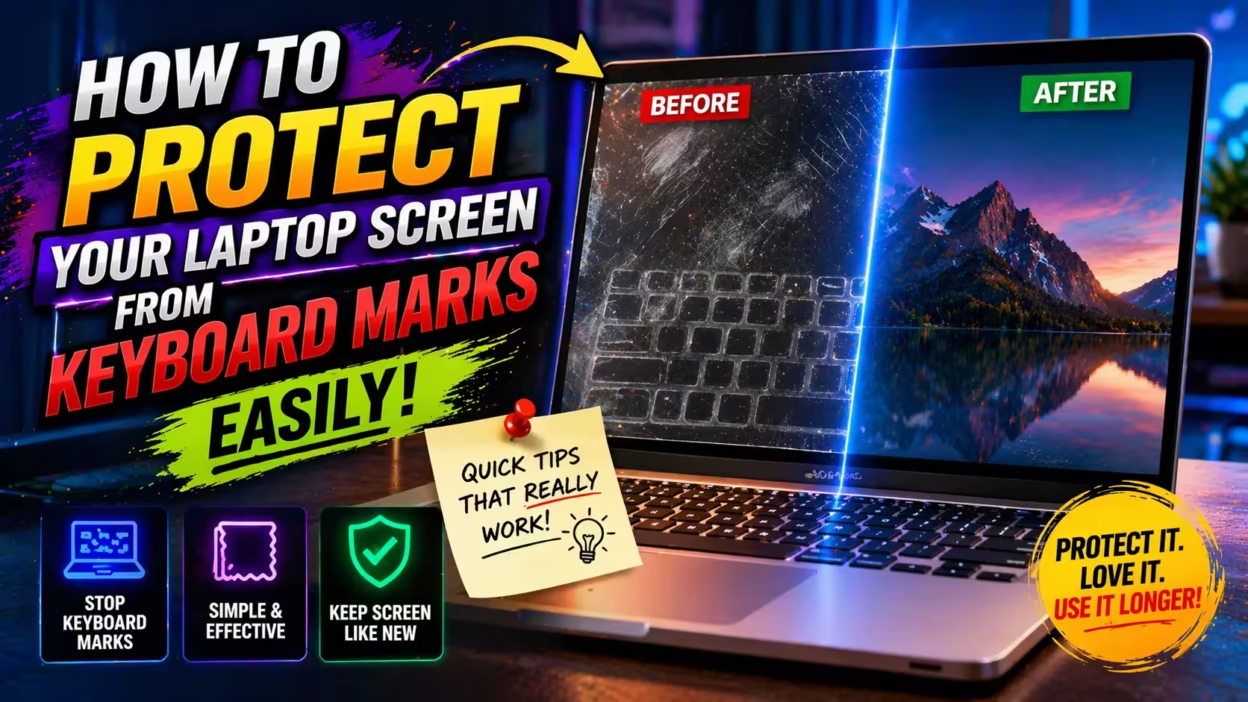
Many people notice strange marks or smudges on their laptop screen. These marks often match the shape or location of the keyboard. Over time, these keyboard marks can become permanent, making your screen look dirty or even scratched. If you use your laptop for work, study, or entertainment, keeping the screen clear is important.
A clean screen is easier to read, more enjoyable to use, and helps your laptop stay in good condition.
So, how do you protect your laptop screen from keyboard marks? This guide will walk you through everything you need to know. You’ll learn why these marks appear, what materials and habits cause them, and practical steps you can take to prevent damage.
Whether you own a new laptop or an older one, these methods will help you keep your screen spotless and extend your device’s life.
Why Do Keyboard Marks Appear On Laptop Screens?
You may think your laptop is safe when you close it, but the real problem starts when the lid is shut. Most modern laptops are very thin. When closed, the screen and keyboard are very close together. As you carry your laptop or even just open and close it often, the keyboard can touch the screen.
This contact can leave marks, dust, or even scratches.
Keyboard marks are usually caused by:
- Pressure: When you put your laptop in a bag or backpack, extra pressure pushes the keyboard against the screen.
- Oils and dirt: Your fingers leave oils on the keyboard. When the keys touch the screen, these oils transfer and create smudges.
- Dust and debris: Small particles on the keyboard can get pressed into the screen, causing scratches.
- Heat and humidity: In some climates, moisture can mix with dust and oils, making marks harder to remove.
A study from PCMag found that about 67% of laptop users notice visible marks or stains on their screens after just six months of use. Many users do not know that regular cleaning and simple habits can prevent these problems.
Understanding The Risks: More Than Just Dirty Screens
It’s easy to think keyboard marks are only a cosmetic problem. But if left unchecked, they can cause real damage:
- Permanent stains: Oils and dirt can leave marks that do not come off, even with special cleaners.
- Scratches: Small bits of dust or debris can scratch the screen surface, making it harder to read.
- Reduced display quality: Over time, stains and scratches affect how colors and images look.
- Warranty issues: Some laptop warranties do not cover screen damage caused by contact with the keyboard.
So, protecting your screen is not just about looks. It’s also about keeping your laptop working well and avoiding expensive repairs.
Choosing The Right Screen Protection Method
There are many ways to protect your laptop screen from keyboard marks. Each method has its pros and cons. The right choice depends on your laptop model, your daily habits, and your budget.
| Protection Method | Cost | Effectiveness | Ease of Use |
|---|---|---|---|
| Microfiber Cloth | Low | High | Very Easy |
| Keyboard Cover | Low-Medium | Medium-High | Easy |
| Screen Protector | Medium | High | Moderate |
| Hard Shell Case | Medium-High | Medium | Easy |
| Laptop Sleeve | Low-Medium | Medium | Very Easy |
Let’s look at each method in detail, including how to use them and what mistakes to avoid.
Using A Microfiber Cloth: Simple And Reliable
One of the easiest ways to prevent keyboard marks is to place a microfiber cloth over the keyboard before closing your laptop. Microfiber cloths are soft, lint-free, and safe for electronics.
How To Use A Microfiber Cloth
- Choose a cloth that is slightly larger than your keyboard.
- Gently lay it over the keyboard every time before you close your laptop.
- Make sure the cloth is clean and free from dust.
- Replace or wash the cloth regularly.
Tip: Never use paper towels or rough fabrics. They can scratch the screen.
Why It Works
The cloth acts as a barrier. It absorbs oils and dust from the keyboard, so they never reach the screen. Microfiber is designed to trap tiny particles, making it very effective.
What Beginners Miss
Many people forget to wash the cloth. A dirty cloth can pick up sand or grit and actually cause scratches over time. Always keep at least two cloths and rotate them.

Installing A Keyboard Cover: Added Protection
A keyboard cover is a thin sheet of silicone or plastic that fits over your laptop keys. It prevents direct contact between the keys and the screen.
Benefits Of Keyboard Covers
- Stops dust and crumbs from collecting between the keys.
- Reduces oil transfer from fingers to keys.
- Provides a smooth surface, less likely to leave marks on the screen.
How To Use
- Buy a cover made for your laptop model. Generic covers might not fit perfectly.
- Place it over the keyboard, making sure it sits flat.
- Remove and clean the cover weekly.
Common Mistakes
Some users leave dirty covers on for months. This can lead to a buildup of grime. Also, avoid covers that are too thick, as they may add extra pressure on the screen when closed.
Applying A Screen Protector: A Long-term Solution
A screen protector is a thin, clear film or glass that sticks directly to your laptop screen. It is similar to the ones used on smartphones.
Pros Of Using A Screen Protector
- Shields against scratches, smudges, and oils.
- Can reduce glare and reflections.
- Some types resist fingerprints.
How To Apply
- Clean the screen thoroughly with a microfiber cloth.
- Align the protector with the edges of the screen.
- Gently press it down, smoothing out bubbles.
What To Watch Out For
Air bubbles or dust trapped under the protector can reduce clarity. Always apply the protector in a clean, dust-free room.
Screen Protector Types
| Type | Material | Best For | Drawbacks |
|---|---|---|---|
| Plastic Film | Polyethylene or PET | Budget options | Lower clarity, less durable |
| Tempered Glass | Glass | High protection, easy cleaning | Thicker, more expensive |
| Anti-glare | Special coating | Bright environments | May reduce sharpness |

Carrying Your Laptop Correctly: Reduce Pressure
How you carry your laptop matters. Putting your laptop in a tight bag with books or heavy items can squeeze the lid. This pressure pushes the keyboard into the screen, increasing the risk of marks and even cracks.
Best Practices
- Use a padded laptop sleeve inside your backpack or briefcase.
- Avoid stacking heavy items on top of your laptop.
- Store your laptop in a separate compartment, away from pens, cables, or chargers.
Real-world Example
A study by Consumer Reports found that laptops carried in crowded bags are three times more likely to develop keyboard marks than those carried in dedicated sleeves.
Insider tip: If you must carry other items, place them beside, not on top of, the laptop.
Keeping Your Keyboard Clean: Preventative Maintenance
Cleaning your keyboard regularly not only makes typing more pleasant, but also helps prevent oils and dust from transferring to the screen.
How To Clean
- Turn off your laptop.
- Use a can of compressed air to blow out dust.
- Wipe the keys gently with a microfiber cloth, slightly dampened with water or a screen-safe cleaner.
- Never spray liquid directly onto the keyboard.
What Most Users Miss
It’s easy to forget the sides and spaces between keys. Use a soft brush or a cotton swab for these areas. Also, clean your hands before using your laptop—this reduces the oil and dirt left behind.
Avoiding Eating And Drinking Near Your Laptop
Eating or drinking over your laptop can leave crumbs and spills. These can stick to the keys and later transfer to the screen.
Practical Advice
- Create a habit: Never eat or drink near your laptop.
- If you must, use a keyboard cover and clean the area immediately after.
- Watch out for sticky drinks like coffee or soda, which are harder to clean.
Even small crumbs can scratch your screen if they get stuck between the keys and the display.
Use The Right Cleaning Products For Your Screen
Cleaning your screen the wrong way can make marks worse or even cause permanent damage.
Safe Cleaning Options
- Use only screen-safe sprays or solutions made for electronics.
- Apply cleaner to a microfiber cloth, not directly on the screen.
- Wipe gently in circular motions.
What To Avoid
- Paper towels, which are too rough.
- Household cleaners like ammonia or alcohol.
- Old t-shirts or towels, which can leave lint or scratches.
Expert tip: Clean your screen weekly, even if you don’t see marks.
Storing Your Laptop Properly At Home
When you are not using your laptop, storing it correctly can make a big difference.
How To Store
- Close the laptop gently, avoiding slamming the lid.
- Leave a microfiber cloth or special keyboard protector between the screen and keyboard.
- Store your laptop in a cool, dry place, away from direct sunlight.
- Avoid stacking other objects on top of your closed laptop.
Humidity and heat can make oils and dust stick more to your screen. Keeping your laptop out of the sun and away from windows helps prevent this.
Using Laptop Stands And Risers
If you use your laptop at a desk for long periods, a stand or riser can help keep it safe.
Benefits
- Keeps your laptop at a better angle, reducing accidental spills or pressure.
- Allows better airflow, which can reduce heat buildup.
- Makes it easier to add an external keyboard, keeping your built-in keyboard cleaner.
Some stands have soft padding or rubber feet to prevent scratches when you close the laptop.
Traveling With Your Laptop: Special Considerations
Traveling increases the risk of keyboard marks. Airplane trays, hotel rooms, and busy airports are not always the cleanest places.
Travel Tips
- Always use a microfiber cloth or keyboard cover before closing your laptop.
- Carry your laptop in a dedicated sleeve.
- Avoid opening your laptop in dusty or sandy environments.
- Wipe both keyboard and screen after each use, especially if you’ve traveled through high-traffic areas.
Real-world Mistake
Many travelers leave their laptop in a hotel safe or drawer without protection. Always use a cloth or cover, even for short stays.
Understanding Laptop Design: Some Models Are More Vulnerable
Not all laptops are the same. Some models are more likely to develop keyboard marks because of their design.
Common Features That Increase Risk
- Ultra-thin designs: Less space between keyboard and screen.
- Glossy screens: Show smudges and scratches more easily.
- Soft or flexible lids: More likely to flex under pressure.
How To Check
Close your laptop slowly and look from the side. If you can see the keys touching or nearly touching the screen, your laptop is at higher risk.
What To Do
If your laptop is at risk, always use a cloth, cover, or protector. Consider talking to your laptop’s manufacturer about recommended protection. Some brands offer their own screen-safe products.
Custom Diy Solutions For Extra Protection
If you can’t find the right protector for your laptop, you can make your own.
Diy Ideas
- Cut a microfiber cloth to fit the exact size of your keyboard.
- Use thin felt sheets (sold at craft stores) as a barrier.
- Carefully trim a plastic screen protector if your laptop model is not supported.
Diy Mistakes To Avoid
- Do not use cardboard or paper, as they can scratch the screen.
- Avoid materials that leave lint or fibers.
- Never use thick materials that add pressure when you close your laptop.
Creative tip: Some people add a little tab to their cloth or felt so it’s easy to remove.
Comparing The Most Popular Screen Protection Options
To help you decide, here’s a direct comparison of the most used laptop screen protection methods:
| Method | Pros | Cons | Best For |
|---|---|---|---|
| Microfiber Cloth | Cheap, effective, easy to replace | Can be forgotten, needs washing | All laptop users |
| Keyboard Cover | Blocks dust, reusable | Can feel odd when typing, needs cleaning | Heavy typists, shared laptops |
| Screen Protector | Long-term scratch protection | Tricky to apply, may reduce clarity | Frequent travelers, new laptops |
| Hard Shell Case | Adds physical protection | Adds weight, not focused on screen | Travelers, students |
Common Mistakes That Cause Keyboard Marks
It’s important to avoid habits that lead to marks, even if you use protection.
Frequent Mistakes
- Closing your laptop with objects (like pens or USB drives) on the keyboard.
- Using rough cloths or napkins to clean the screen.
- Carrying your laptop in a crowded bag without a sleeve.
- Not cleaning your hands before typing.
- Forgetting to replace or clean your screen protector.
Two Insights Most People Miss
- Pressure from even light objects (like a paperback book) in your bag can be enough to press the keyboard into the screen.
- Invisible oils and residues from hand creams or lotions can transfer through the keys and leave hard-to-see but damaging marks on your screen.
How Often Should You Clean And Protect Your Laptop?
There is no single answer, but regular care makes a big difference.
- Daily: Wipe the keyboard and screen with a dry microfiber cloth.
- Weekly: Deep clean the keyboard and screen with a suitable cleaner.
- Monthly: Check for marks, replace or wash covers and cloths.
- Before travel: Always add extra protection.
Building these simple habits keeps your laptop screen looking new and improves your overall experience.
Are Screen Marks Covered By Warranty?
Most laptop makers do not cover screen marks caused by user habits. They consider this “cosmetic damage.” If your screen has deep scratches or stains, you may have to pay for repairs. Some premium credit cards offer extended warranties or accidental damage coverage. Always check the details before making a claim.
For more on electronics warranties, you can visit Wikipedia.
Frequently Asked Questions
What Is The Best Way To Prevent Keyboard Marks On My Laptop Screen?
The best method is to use a clean microfiber cloth or a keyboard cover every time you close your laptop. Also, keep your keyboard clean and carry your laptop in a padded sleeve. Combining these steps gives the most reliable protection.
Can I Use Any Cloth To Protect My Screen?
No, you should only use microfiber cloths made for electronics. Regular fabrics or paper towels can scratch your screen or leave lint. Microfiber traps dust and oils safely.
Do Screen Protectors Change How My Laptop Screen Looks?
Some plastic film protectors may reduce sharpness or add a slight haze, especially anti-glare types. Tempered glass protectors usually keep high clarity but add a small amount of thickness.
Are Keyboard Marks Permanent?
Most smudges can be cleaned with the right products. However, if marks are left for a long time or if the screen gets scratched, some damage can become permanent. Early cleaning and protection are key.
Should I Buy A Laptop With A Matte Or Glossy Screen To Avoid Marks?
Matte screens show fewer smudges and fingerprints, but both matte and glossy screens can get keyboard marks. Protection methods work for both types, but matte screens may be more forgiving.
Protecting your laptop screen from keyboard marks is not complicated, but it requires regular care and good habits. By choosing the right protection method, cleaning often, and avoiding common mistakes, you can keep your screen clear and your laptop looking new for years.
Investing a few minutes each day makes a big difference in the long run.


