
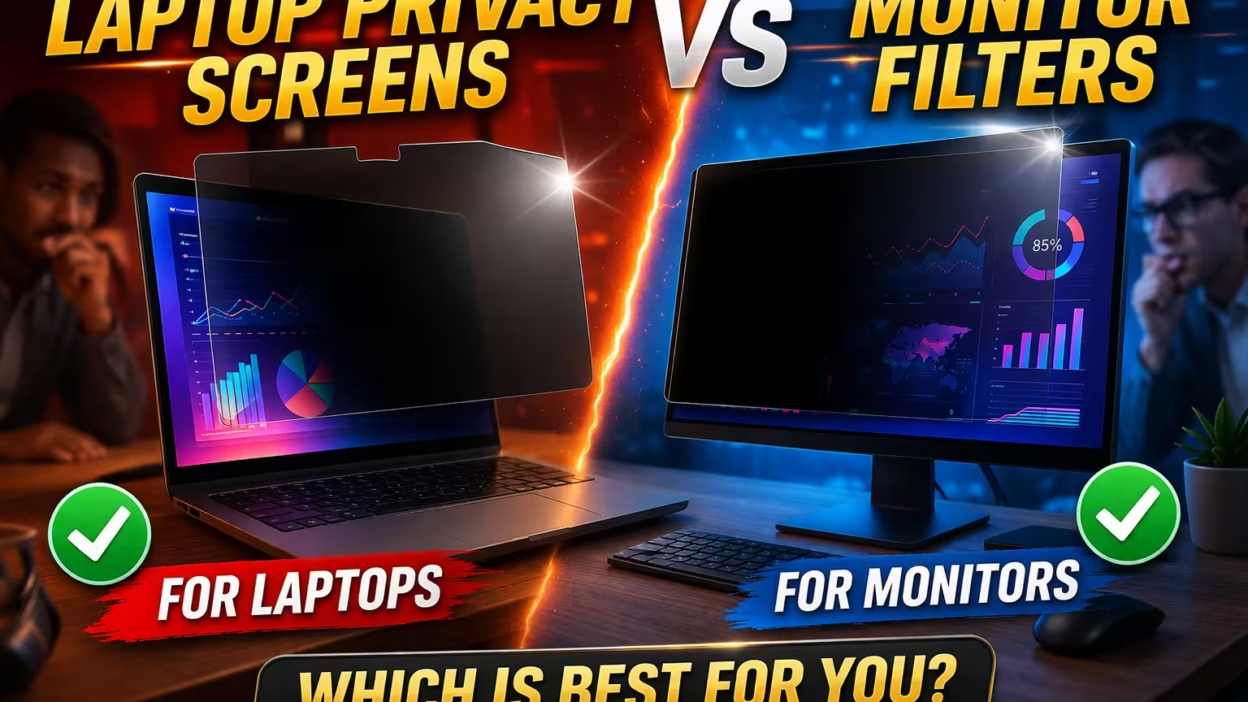
Laptop Privacy Screens Vs Monitor Filters
Whether you work in a busy office, travel with your laptop, or simply want to protect your screen from wandering eyes, privacy filters have become an important tool. But with so many options, many people wonder: What’s the difference between laptop privacy screens and monitor filters? Which one should you buy for your device? Both claim to keep your information private, but there are key differences in their use, fit, and effectiveness.
Understanding these differences is important, especially as more people work remotely or in shared spaces. A privacy screen can mean the difference between secure data and accidental exposure. This article will guide you through how each type works, their strengths and weaknesses, real-world examples, and what to consider before making a choice.
By the end, you’ll know exactly which solution fits your needs—and why.
What Are Privacy Screens And Monitor Filters?
Before comparing them, let’s get clear on the basics.
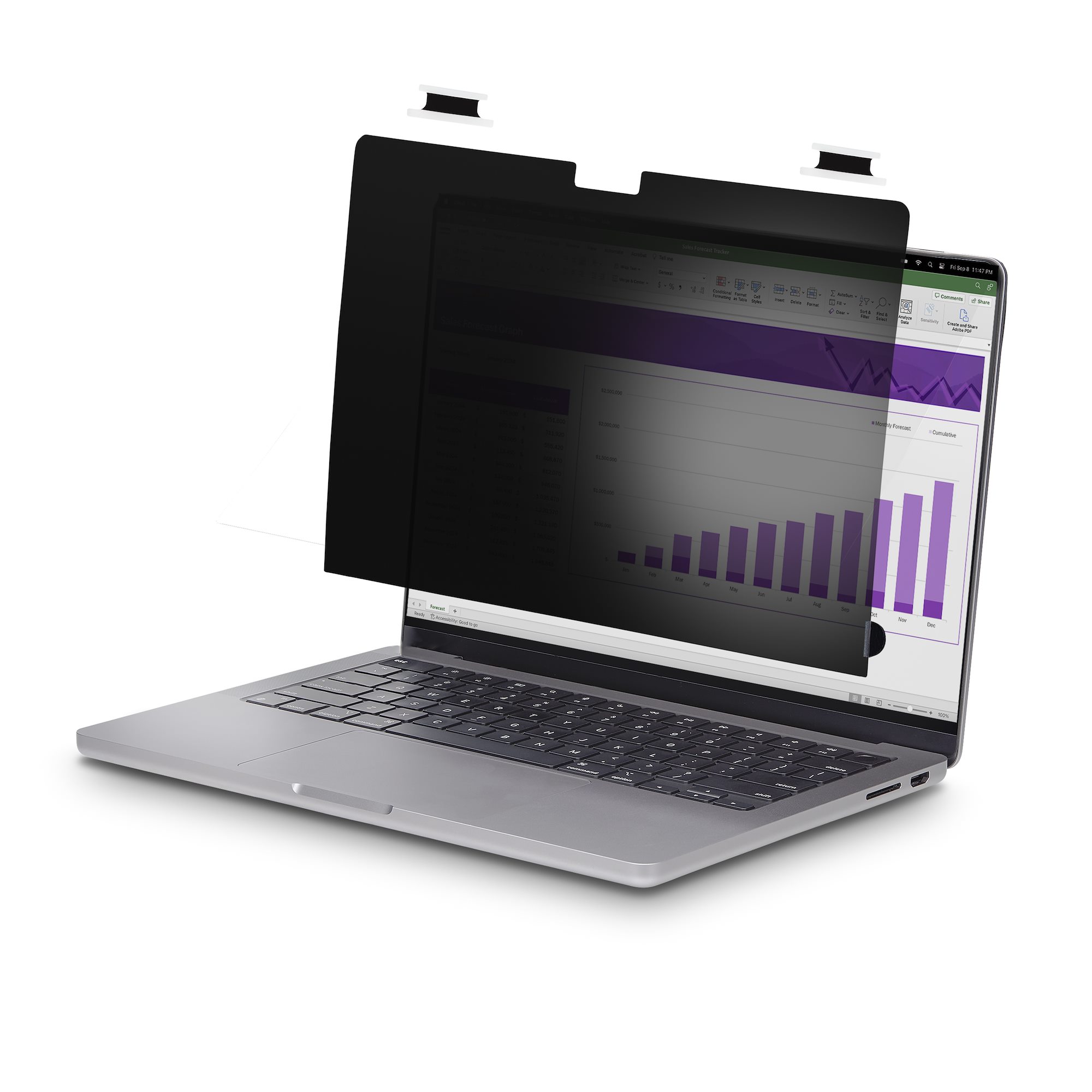
A privacy screen is a thin layer that attaches to your laptop’s display. It limits the viewing angle so only you, sitting directly in front, can see what’s on the screen. Anyone looking from the side sees a dark, blurred, or sometimes gold-tinged surface.
A monitor filter is a broader category. It includes privacy screens for desktops, anti-glare filters, blue light blockers, and other overlays you place on desktop monitors. When people say “monitor filter,” they often mean a privacy filter for a large external monitor, but it can also cover other screen-protection options.
While their main purpose is privacy, both types may also reduce glare, filter blue light, or protect against scratches. But their design and installation can be quite different.
How Do Privacy Screens Work?
The technology behind privacy screens is simple but clever. Most use micro-louver technology—tiny vertical blinds built into the film. When you sit directly in front, the screen looks normal. But as you move to the side (usually beyond 30°), the louvers block light, making the screen appear black or dark gray.
Some privacy screens use polarized coatings, which further reduce visibility from side angles. Others may add anti-glare or blue light filtering.
Benefits Of Privacy Screens
- Protect sensitive information – Only you see your emails, spreadsheets, or financial data.
- Reduce distractions – Fewer people can watch your screen, so you focus better.
- Easy to remove – Most screens are removable for cleaning or sharing your display.
- Travel-friendly – Ideal for working in airports, cafes, or public transport.
How Privacy Screens Attach
Laptop privacy screens usually attach in one of three ways:
- Adhesive strips: Small stickers hold the screen to your laptop bezel.
- Slide mounts: Small tabs let you slide the filter in and out.
- Magnetic: Some premium screens snap on with magnets (mainly for MacBooks).
Each method has its pros and cons. Adhesive is low-profile but harder to remove. Slide mounts are easy to use but may show on the edges. Magnetic is the simplest but only works on certain models.
What Is A Monitor Filter?
Monitor filters cover a wider range of products. In this article, “monitor filter” refers mainly to privacy filters made for desktop monitors—external screens used with desktops or laptops.
Just like laptop privacy screens, monitor privacy filters use micro-louvers to block side views. But because desktop monitors are often larger (from 19 to 34 inches or more), these filters are bigger, heavier, and sometimes more expensive. Some also combine privacy with anti-glare or blue light reduction features.
Types Of Monitor Filters
- Privacy filters – Block side views, just like laptop privacy screens.
- Anti-glare filters – Reduce reflections and eye strain, but don’t block side views.
- Blue light filters – Lessen blue light exposure, which can help with eye comfort and sleep.
Some filters combine all three features, but privacy is the main reason people buy monitor filters.
How Monitor Filters Attach
Monitor filters attach in similar ways to laptop screens, but the methods are adapted for larger displays:
- Hanging tabs: The filter hangs from the top of the monitor frame.
- Adhesive strips: Stick the filter directly to the monitor bezel.
- Slide-in mounts: Use brackets or side tabs on the monitor frame.
Larger monitors may need heavier filters, so a stable attachment is important.
Key Differences: Laptop Privacy Screens Vs Monitor Filters
While both products aim to protect on-screen information, there are important differences. Let’s break down the main factors that separate them.
| Feature | Laptop Privacy Screen | Monitor Filter |
|---|---|---|
| Device Type | Laptops (13-17″) | Desktop monitors (19″ and up) |
| Attachment | Adhesive, slide, magnetic | Hanging, adhesive, slide-in |
| Portability | Highly portable | Usually fixed, less portable |
| Durability | Lightweight, flexible | Thicker, more rigid |
| Price Range | $20–$70 | $30–$120+ |
| Reusability | Easy to remove/reuse | Some can be reused, others fixed |
| Compatibility | Model-specific or universal | Size-specific, sometimes curved |
Size And Fit
Laptop privacy screens are made for smaller, portable displays. They are thin and designed to match the size of common laptop screens (13″, 15.6″, 17″, etc.). Some are model-specific (made for MacBook, Dell XPS, etc.), while others are universal but may require trimming.
Monitor filters are much larger, often covering wide or curved desktop monitors. Getting the exact size is crucial—many buyers make mistakes by choosing “close enough” sizes, which leads to poor fit and gaps at the edges.
Installation And Portability
Laptop privacy screens are designed for people on the go. You can remove and re-attach them easily, making them perfect for travel or switching between workspaces.
Monitor filters are usually installed once and left in place. Some can be removed, but because of their size and weight, they are not meant for frequent travel.
Visual Quality
A common concern is how much the screen dims or distorts the display. Both types reduce brightness by about 15–25% (depending on the brand and model). Colors may appear slightly muted, and sharpness can decrease a little.
Laptop screens often look better because the filters are thinner and made for close-up use. Some monitor filters, especially cheaper ones, can cause more noticeable glare or blurring. If you do graphic design or photo editing, this matters.
Price
Laptop privacy screens usually cost $20–$70, depending on size, attachment method, and brand. Monitor filters for large displays can cost $30–$120 or more—especially for wide or curved monitors.
Use Cases: When To Choose Each
The right choice depends on your device, work habits, and environment. Here’s how to decide.
Laptop Privacy Screens
Best for:
- Remote workers in public spaces (cafes, trains, airports)
- Travelers who use laptops on the go
- Students working in libraries or shared classrooms
- Executives handling confidential data in meetings
You need portability and the ability to attach/remove the filter quickly. You might use the filter only when needed and keep it in your bag the rest of the time.
Monitor Filters
Best for:
- Office workers with large desktop monitors
- Healthcare, finance, or legal professionals working with sensitive data
- Receptionists or front-desk staff where others can see the screen
- Call centers or shared workspaces with multiple monitors
Here, the filter stays on the monitor all day. It’s less about portability and more about permanent privacy in a fixed location.
Real-world Examples
Let’s look at practical situations.
Example 1: Sarah is a financial analyst who travels weekly. She uses a 15″ laptop on planes and in hotels. She chooses a slide-mount privacy screen she can attach or remove in seconds. This keeps client data safe, and she can remove the filter for presentations.
Example 2: Mark works in a hospital, entering patient info on a 24″ desktop monitor. His desk faces a hallway. He installs a monitor privacy filter that blocks side views, meeting HIPAA privacy rules.
Example 3: Nina is a designer with a 27″ curved monitor at home. She tries a universal monitor filter, but it doesn’t fit the curve well—gaps let others see the screen. She learns that some monitor filters are made for flat screens only and chooses a model designed for curved monitors.
Beginner’s insight: Many people forget to check the exact size and shape of their screen. Privacy filters must match the display closely—especially for curved or ultra-wide monitors, where a poor fit can ruin privacy.
Installation: Step-by-step
Each filter type has its own installation process. Here’s how to do it right.
Laptop Privacy Screen
- Clean the screen with the included wipe. Dust or fingerprints can cause bubbles.
- Choose your attachment method (adhesive, slide, or magnetic).
- Align the filter with your laptop bezel. For adhesive, peel and stick carefully at the corners.
- Press gently to fix the filter in place.
- Test the angle: Move side to side to check the privacy effect.
Tip: If using adhesive strips, place them on the bezel, not the screen glass. For magnetic screens, make sure your laptop supports magnets.
Monitor Filter
- Measure your monitor to confirm the right filter size (width, height, and aspect ratio).
- Clean the monitor surface to remove dust.
- Attach hanging tabs to the top of the monitor (if provided), or use side brackets for slide-in models.
- Carefully hang or slide the filter in place.
- Check for gaps at the edges—adjust if needed.
Common mistake: Many users buy filters that are too large or small. Always measure your screen (not just the visible area) for a proper fit.
Pros And Cons: Side-by-side
It helps to look at the advantages and disadvantages of each option.
| Aspect | Laptop Privacy Screen | Monitor Filter |
|---|---|---|
| Privacy Effectiveness | High for direct viewing; may leave thin edges visible | High, covers larger area; must match size perfectly |
| Image Clarity | Minor dimming, good color retention | Some models may blur or dim more |
| Ease of Installation | Simple, fast (especially magnetic) | May need more time, especially for large screens |
| Durability | Flexible, can wear over time | Sturdy, lasts long but heavier |
| Portability | Very portable, easy to remove | Not portable; meant to stay on monitor |
| Price | Affordable | Can be expensive for large/curved monitors |
Practical Buying Guide
Buying the right filter can be tricky. Here’s what really matters:
1. Screen Size And Aspect Ratio
Always measure your device’s screen diagonally (in inches) and check the aspect ratio (16:9, 16:10, etc.). A filter that’s too large will hang over the edge; too small leaves gaps.
Non-obvious insight: For curved or ultra-wide monitors, standard flat filters may not work. Look for filters made specifically for your screen shape.
2. Attachment Method
- Laptop users: Magnetic is easiest but costs more. Adhesive is permanent but slim. Slide mounts are a good middle ground.
- Monitor users: Hanging tabs are simplest for large screens. Slide-in or bracket mounts are best for a seamless look.
3. Level Of Privacy
Check the privacy angle. Most filters block views beyond 30°, but some premium models offer narrower (more private) angles.
Practical tip: If you regularly share your screen, choose a removable filter. If your device stays on your desk, a fixed filter is fine.
4. Additional Features
Some filters add:
- Anti-glare: Reduces reflections, especially helpful under bright lights.
- Blue light blocking: Helps with eye comfort during long hours.
- Scratch resistance: Protects the screen, especially for touch devices.
5. Brand And Warranty
Trusted brands like 3M, Kensington, and Fellowes offer higher-quality filters and better customer support. Check for at least a 1-year warranty.
6. Price Vs. Value
Don’t choose the cheapest option. Poorly made filters can warp, bubble, or not block side views well. Spend a bit more for a reliable filter—you’ll use it every day.
Common Mistakes And How To Avoid Them
- Wrong size: Always measure your screen carefully, including any bezels.
- Ignoring screen shape: Standard filters won’t fit curved or ultra-wide monitors perfectly.
- Permanent adhesives on touchscreens: These can damage touch sensitivity or leave residue.
- Forgetting about brightness: Both types dim your screen; you may need to increase your display’s brightness.
- Not considering removability: If you share your device, choose a removable filter.
Beginner’s insight: Many first-time buyers overlook the installation process. If you’re not comfortable applying adhesive or aligning brackets, choose a filter with an easier attachment method.
Security And Compliance
In some industries, privacy screens and filters are not just a choice—they are required for compliance. For example:
- HIPAA (healthcare): Patient info must be kept private. Filters help prevent accidental exposure.
- Finance and banking: Customer data is sensitive. Privacy filters are a simple way to add a security layer.
- Government and legal: Confidential documents must not be visible to unauthorized people.
If you work in these areas, check your company’s requirements. Some organizations specify which filter brands or models you must use.
Cleaning And Maintenance
Both laptops and monitor filters collect dust, fingerprints, and smudges. Here’s how to keep them clear:
- Use a microfiber cloth to wipe gently.
- Avoid harsh chemicals; use water or a mild screen cleaner.
- Remove the filter before cleaning, if possible, to prevent pushing dirt under the edges.
- Store removable filters in a sleeve to prevent scratches.
Clean filters improve clarity and keep privacy protection effective.
Environmental Impact
Most privacy screens and filters are made from plastics like PET or polycarbonate. Some brands now offer recyclable or eco-friendly options. If you replace your filter, recycle it according to local guidelines to reduce waste.
Are There Alternatives?
Some people try software solutions, like blurring sensitive info or using dark mode. While helpful, these do not block side views. Others use DIY methods like tape or paper, but these look unprofessional and do not truly protect privacy.
Physical privacy filters remain the best choice for real-world data protection.
Innovations And Future Trends
Privacy technology is advancing. Some new laptops now offer built-in privacy modes—press a key to narrow the viewing angle electronically. However, most external monitors and older laptops do not have this feature.
Expect future filters to become thinner, clearer, and more environmentally friendly. Some may even add antimicrobial coatings or combine with screen protectors for touch devices.
For now, choosing the right filter is still about device fit, privacy level, and ease of use.
Summary Table: Which Should You Choose?
Here’s a quick-reference guide:
| Situation | Best Option |
|---|---|
| Traveling with a laptop | Laptop privacy screen (slide or magnetic) |
| Office desktop monitor | Monitor filter (hanging or bracketed) |
| Curved/ultra-wide monitor | Specialized monitor filter |
| Sharing screen with others | Removable filter |
| Compliance-required industry | Brand-certified privacy filter |
Choosing The Right Solution For You
When it comes to laptop privacy screens vs monitor filters, the best option depends on your device, work style, and environment. Laptops need portable, removable protection; desktop monitors require larger, sometimes permanent filters. Both help you keep your information safe from prying eyes.
Measure your screen, check your attachment options, and consider how often you’ll need to remove the filter. Remember, the right fit and quality are key—don’t settle for “close enough. ” Privacy is too important to risk.
If you want more details on the science behind privacy screens, you can check this Wikipedia article about privacy screens.
Frequently Asked Questions
What’s The Main Difference Between A Laptop Privacy Screen And A Monitor Filter?
A laptop privacy screen is made for portable devices, designed to be removable and easy to use on the go. A monitor filter is for larger desktop monitors, usually stays in place, and is less portable.
Will A Privacy Screen Affect My Display Quality?
Yes, both types can dim your screen by 15–25% and may slightly change color accuracy. Higher-quality filters reduce this effect. Increasing your screen’s brightness helps.
How Do I Know Which Size Filter To Buy?
Measure your screen diagonally (in inches) and check the aspect ratio (like 16:9). Get a filter that matches both size and shape closely—especially important for curved or wide monitors.
Are Privacy Filters Required For Compliance?
In some industries (healthcare, finance, government), privacy filters are required for legal compliance (e. g. , HIPAA). Check your workplace policies if you handle sensitive data.
Can I Use The Same Filter For Both My Laptop And Monitor?
No, privacy filters are device-specific. Laptop screens are smaller and need different sizes and attachment methods than desktop monitors. Always buy the filter designed for your device.
No matter your choice, protecting your screen is a smart move in today’s world. With the right privacy solution, you can work confidently—anywhere, anytime.


